
RPI Setup
This will guide you through the setup process of the Minodu LCN on the Raspberry Pi.
Requirements
- A Raspberry pi 4 or 5, preferebly with 8GB of ram.
- An ethernet adapter and a cable
- An SD card reader and an sd card with a minimum size if 64GB.
- Python has to be installed on your computer
Setup Raspberry Pi Image
Create Base Image
- Install Raspberry Pi OS Lite (64 bit) on Raspberry Pi. (Tested with this version.) You can use Raspberry PI Imager to create the Image
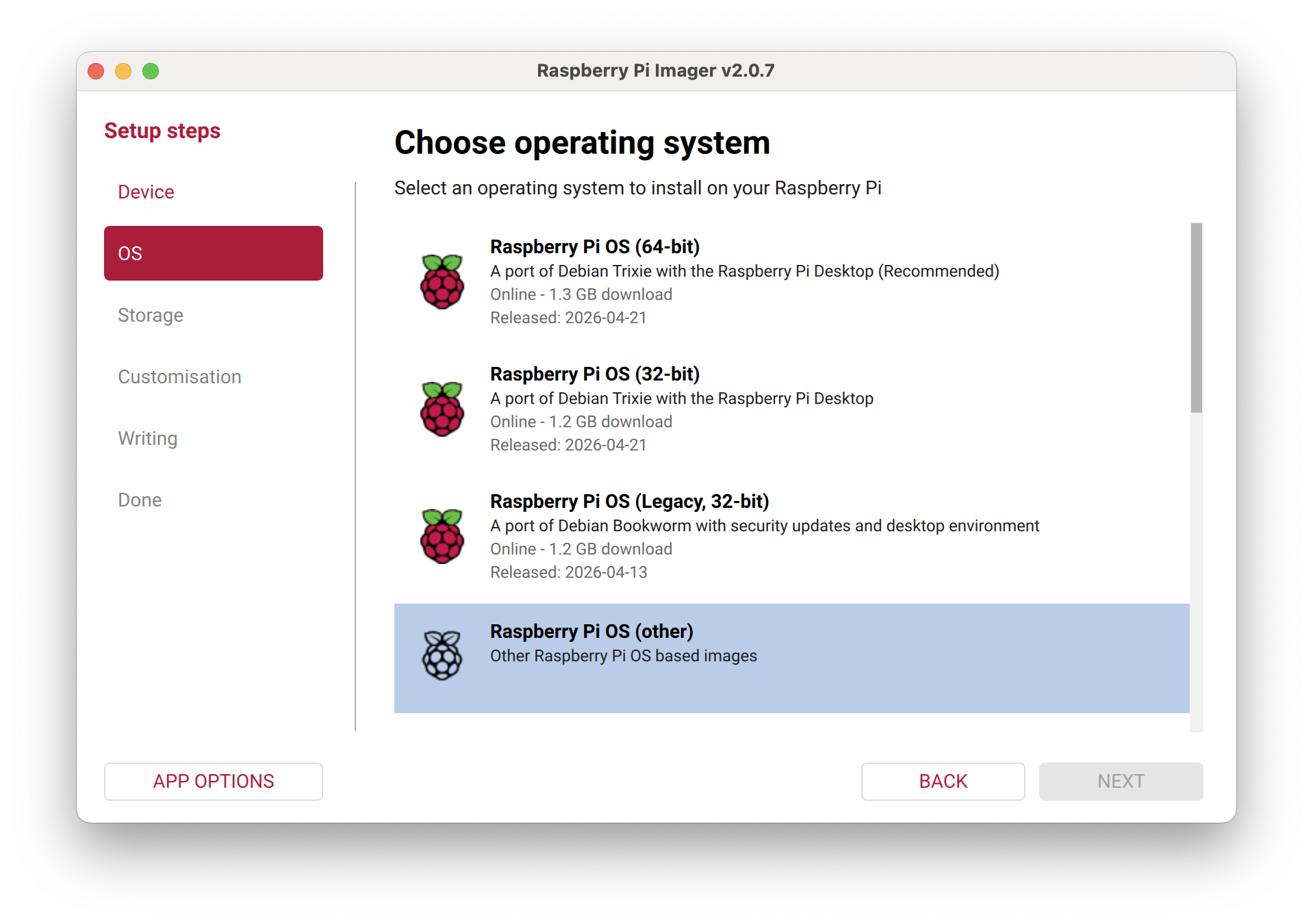
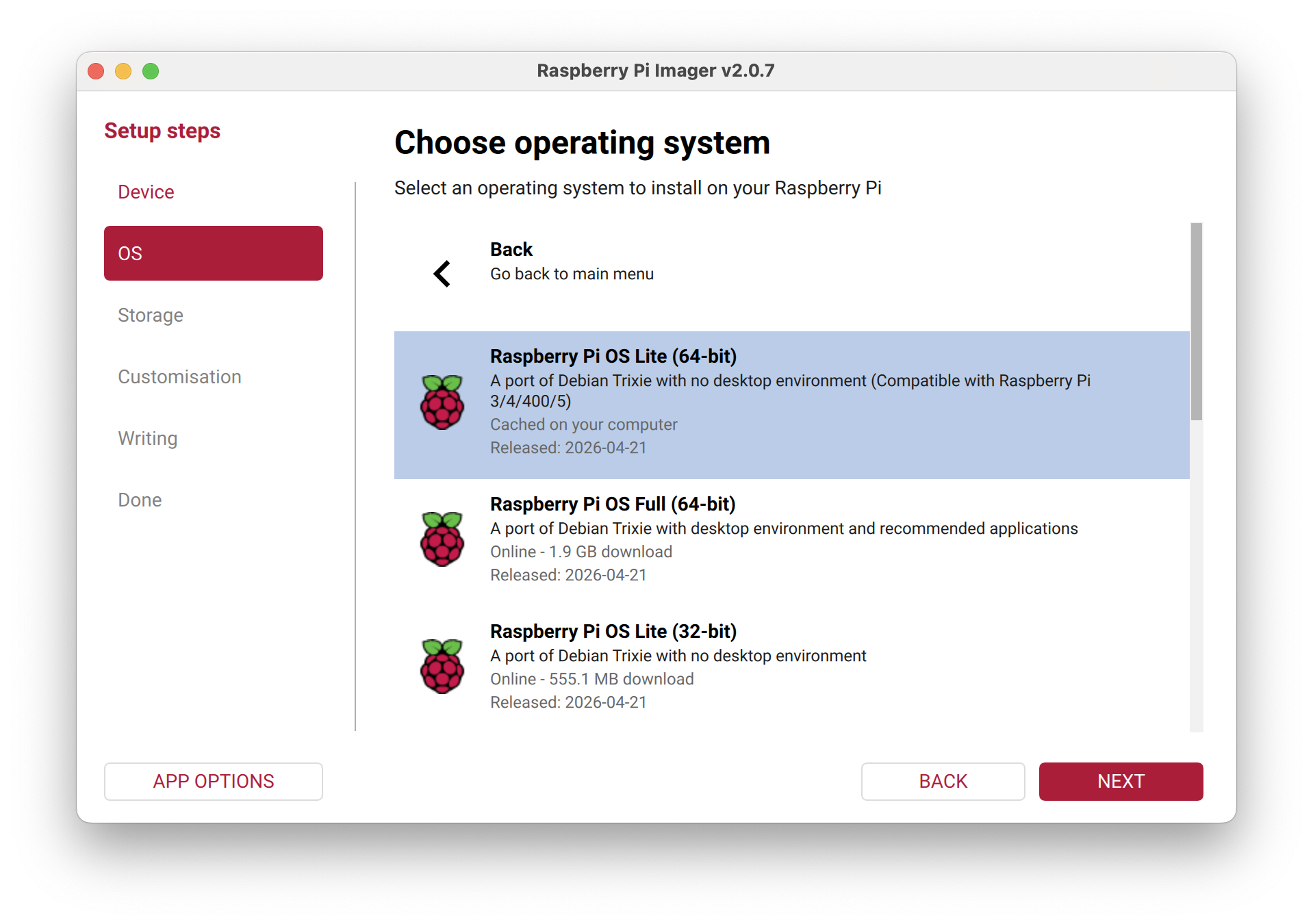
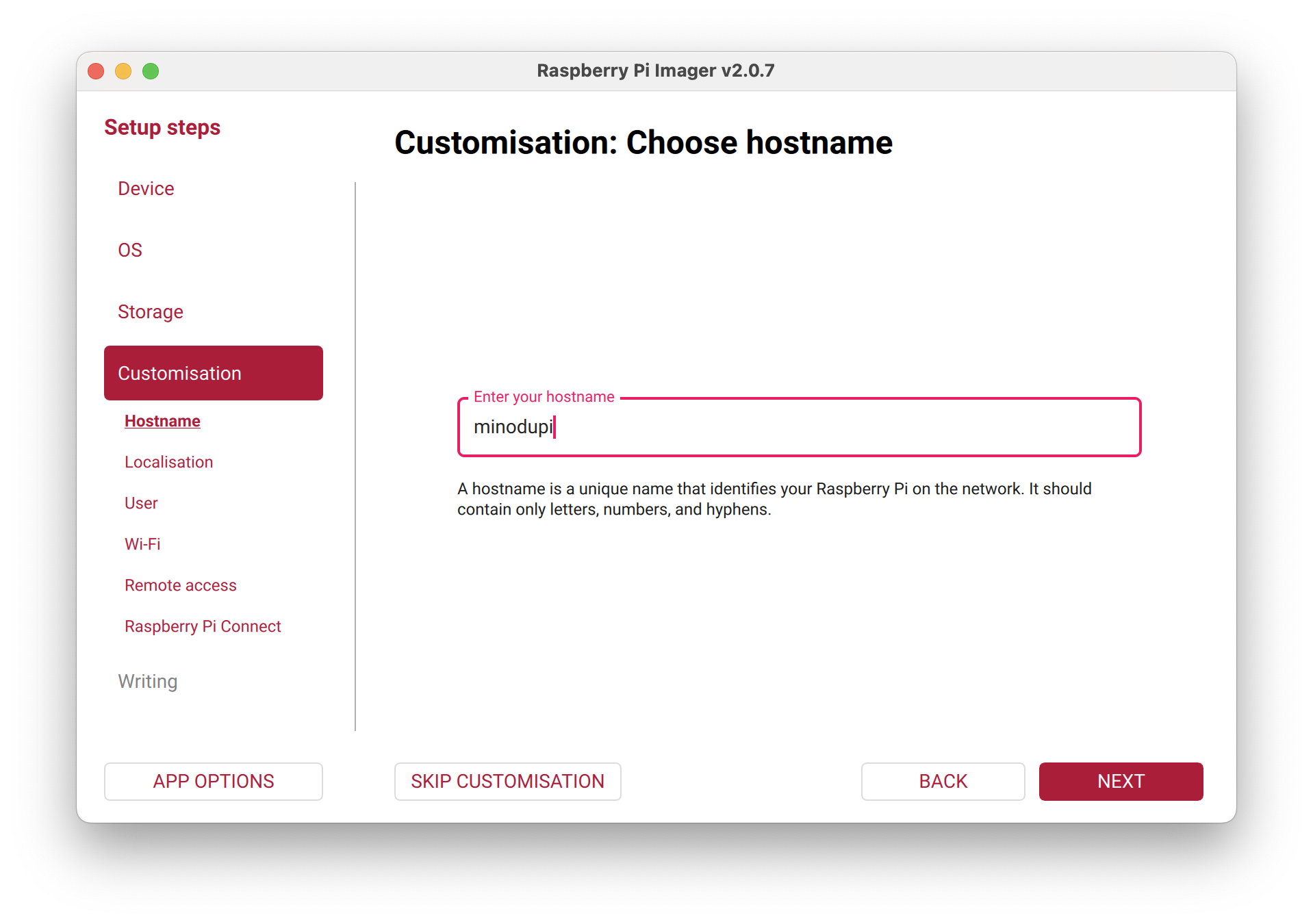
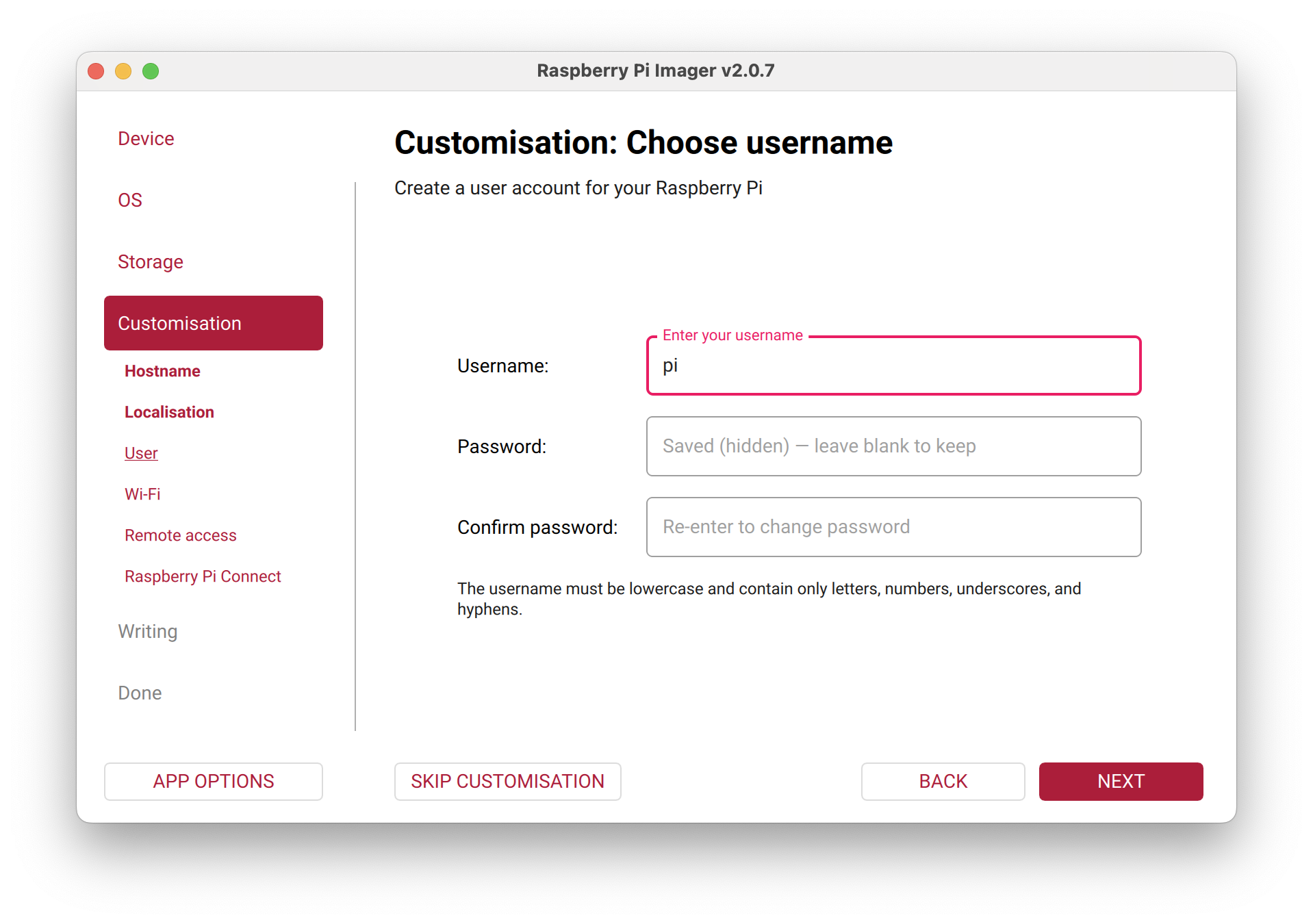
- Set the hostname to minodupi.local, the username to pi and enable ssh in the custom settings of the image. remember the password you choose and write it down.
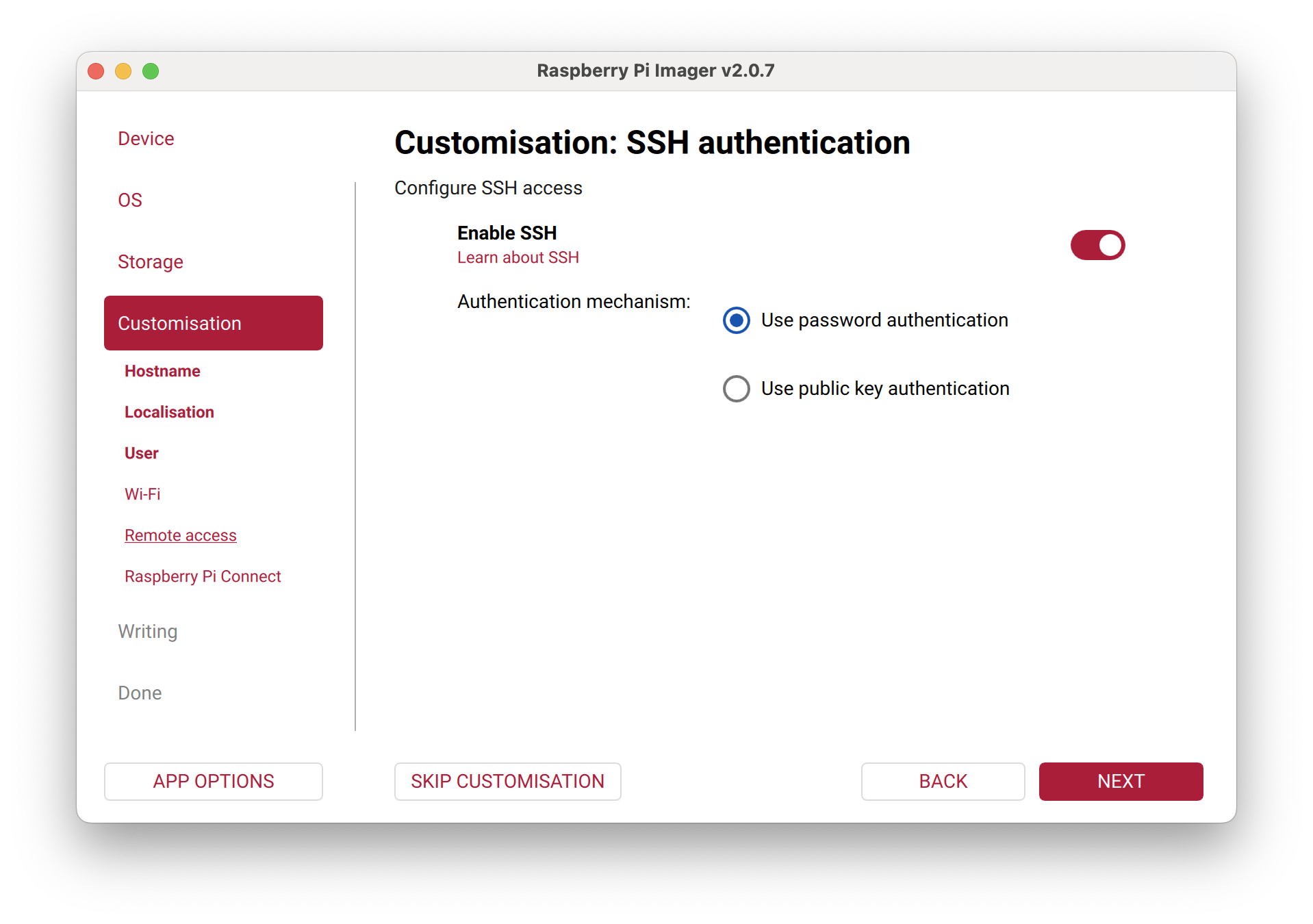
- Once the image is written, insert the sd card into the pi
Connect to RPI
- Connect via ethernet cable to raspberry pi and enable internet Sharing on mac, alternativly, you can plug the raspberry pi into your dhcp router via ethernet
- Make sure
ping minodupi.localreturns an answer, meaning your machine can discover the raspberry pi in the network - Alternative: Connect Monitor do RPI and type in
ifconfigto find out the RPIs ip address and use that one instead of minodupi.local
Install MinoduLCN
- Run all of these commands on your host machine. Don’t run these scripts on the raspberry pi itself.
For Mac OS users
- Download and unzip the minodu installer from https://github.com/MinoduLCN/minodu-installer/archive/refs/heads/main.zip or download it with
curl -L https://github.com/MinoduLCN/minodu-installer/archive/refs/heads/main.zip -o repo.zip && unzip repo.zip - Open a terminal and run:
cd minodu-installer-main pip install pyinfra # run full install script pyinfra @ssh/minodupi.local deploy.py -v --ssh-user="pi" --ssh-password="<pi-user-password>" # or using an ip address pyinfra @ssh/<ip-address> deploy.py -v --ssh-user="pi" --ssh-password="<pi-user-password>" # or run a single step pyinfra @ssh/minodupi.local 01_system_packages.py -v --ssh-user="pi" --ssh-password="<pi-user-password>" # alternativly you can run the install script on the raspberry pi itself by logging in via ssh and running: pyinfra @local deploy.py - It will ask you the following options. In [brackets] is the default value if you leave it empty. Installing the llm is only recommended on a raspberry pi 5 with at least 8gb of ram and a good cooling fan.
WiFi SSID [Minodu]: WLAN country code [DE]: RaspAP admin password [secret]: Install Minodu LLM for Chatbot (y/n) [n]: Admin phone number [90000000]: Admin password [secret]: - Follow the instructions and wait until the installer is done, if you select to install the llm the install procedure will take much longer, since it needs to build the vector database on the raspberry pi.
- The installer might drop the ssh connection after installing the wlan driver and throws an error. If that happens, just wait until it is rebooted and start the script again. It will skip the completed steps
Windows Setup Guide
This guide explains how to prepare a Windows computer, install the required tools, configure SSH, connect to the Raspberry Pi, download the Minodu Installer, and run the Minodu deployment.
The installation is designed as a single sequential process. Complete the Prerequisites and Environment Setup section before downloading or running the Minodu Installer.
1. Before You Begin
Before starting, make sure you have:
- A Windows PC with PowerShell
- Internet access
- A Raspberry Pi powered on and connected to the same network as your PC
- The Raspberry Pi IP address
- The Raspberry Pi SSH username: “pi” for this setup
- The Raspberry Pi SSH password
Example values used in this guide
The examples below use:
Raspberry Pi IP: 192.168.0.30
SSH username:    pi
Replace these values with the information for your Raspberry Pi.
2. Prepare the Windows Environment
Complete all the steps in this section before downloading the Minodu Installer.
This ensures that all required tools are already available when the actual installation starts.
Step 1 - Open PowerShell
Open Windows PowerShell.
You can open it by:
- Pressing
Windows + R - Typing:
powershell
- Pressing Enter
For the standard installation, administrator privileges should not be required.
Step 2 - Install Python
Minodu Installer requires Python.
Check whether Python is already installed
Run:
python --version
If Python is installed, you should see something similar to:
Python 3.x.x
If Python is not installed, download it from the official Python website:
https://www.python.org/downloads/windows/
During installation, make sure to enable:
Add python.exe to PATH
Then complete the installation.
Important
After installing Python, close PowerShell and open a new PowerShell window.
This ensures that the updated Windows PATH is loaded.
Then verify again:
python --version
You should now see:
Python 3.x.x
Do not continue until this command works.
Step 3 - Verify Python’s package manager
Minodu uses Python’s package manager (pip) to install pyinfra.
Run:
python -m pip --version
You should see information similar to:
pip XX.X.X from ...
If the command works, Python and pip are ready.
Step 4 - Install pyinfra
Install pyinfra:
python -m pip install pyinfra
Wait until the installation is complete.
Then verify the installation:
python -m pyinfra --version
You should see the installed pyinfra version.
Important
Use:
python -m pyinfra
instead of:
pyinfra
This ensures that Windows uses the pyinfra installation associated with the Python installation you just verified.
Step 5 - Verify SSH
The Minodu Installer uses SSH to communicate with the Raspberry Pi.
Check whether the Windows SSH client is available:
ssh -V
You should see an OpenSSH version, for example:
OpenSSH_for_Windows_9.x
If ssh is not recognized, install or enable the Windows OpenSSH Client before continuing.
On recent versions of Windows, this can be done through:
Settings → Apps → Optional Features → View features → OpenSSH Client
After installing it, close PowerShell, open a new PowerShell window, and run:
ssh -V
Do not continue until the SSH command is available.
3. Prepare SSH
Once Python, pip, pyinfra, and SSH are ready, configure the SSH environment.
Step 6 - Create the SSH directory
Run:
New-Item -ItemType Directory -Force "$HOME\.ssh"
This creates the SSH directory if it does not already exist.
Step 7 - Create the known_hosts file
Run:
New-Item -ItemType File -Force "$HOME\.ssh\known_hosts"
The known_hosts file stores the SSH host keys of computers you connect to.
4. Test the Raspberry Pi Connection
Before installing Minodu, make sure that your PC can communicate with the Raspberry Pi.
This is the only connection test required before deployment.
Step 8 - Connect to the Raspberry Pi
Run:
ssh pi@192.168.0.30
Replace:
pi
with your Raspberry Pi username and:
192.168.0.30
with your Raspberry Pi IP address.
First SSH connection
If this is the first time you connect to the Raspberry Pi, SSH may display:
Are you sure you want to continue connecting (yes/no/[fingerprint])?
Type:
yes
Then enter the Raspberry Pi user’s password.
If the connection is successful, you should see a shell similar to:
pi@raspberrypi:~ $
This confirms that:
- The Raspberry Pi is reachable
- The IP address is correct
- SSH is working
- The username is correct
- The password is correct
Disconnect from the Raspberry Pi:
exit
You can now proceed with the Minodu installation.
5. Download the Minodu Installer
The Windows environment and SSH connection are now ready.
Step 9 - Download the repository
Return to PowerShell on your Windows PC.
Download the latest version of the Minodu Installer:
curl.exe -L https://github.com/MinoduLCN/minodu-installer/archive/refs/heads/main.zip -o repo.zip
This downloads the repository as:
repo.zip
Step 10 - Extract the repository
Extract the repository:
Expand-Archive -Path "repo.zip" -DestinationPath "." -Force
This creates:
minodu-installer-main
Step 11 - Open the project directory
Navigate into the Minodu Installer directory:
cd minodu-installer-main
You are now inside the Minodu Installer project.
6. Run the Minodu Deployment
All required tools and the SSH connection have already been prepared.
There is no need to go back to the previous steps.
Step 12 - Run the deployment
Run:
python -m pyinfra "@ssh/192.168.0.30" deploy.py -v --ssh-user="pi" --ssh-password="Password"
Replace:
192.168.0.30
with the Raspberry Pi IP address,
pi
with the Raspberry Pi SSH username, and
Password
with the Raspberry Pi SSH password.
For example:
python -m pyinfra "@ssh/192.168.0.30" deploy.py -v --ssh-user="pi" --ssh-password="your-password"
pyinfra will connect to the Raspberry Pi and execute the deployment defined in:
deploy.py
Security Note
Avoid putting a real password directly into a command if the command may be stored in PowerShell history or logs.
For production or repeated deployments, SSH key authentication is preferable.
7. Complete Installation Sequence
Once Python, SSH, and pyinfra have been prepared, the Minodu installation follows this sequence:
curl.exe -L https://github.com/MinoduLCN/minodu-installer/archive/refs/heads/main.zip -o repo.zip

Expand-Archive -Path "repo.zip" -DestinationPath "." -Force

cd minodu-installer-main

python -m pyinfra "@ssh/192.168.0.30" deploy.py -v --ssh-user="pi" --ssh-password="Password"
The commands above assume that the Environment Setup section has already been completed successfully.
8. Troubleshooting
Python is not recognized
If PowerShell displays:
python : The term 'python' is not recognized...
Python is either not installed or is not available in the Windows PATH.
Install Python and make sure:
Add python.exe to PATH
is enabled during installation.
Then:
- Close PowerShell.
- Open a new PowerShell window.
- Run:
python --version
pip is not available
Run:
python -m pip --version
If this command fails, verify that Python was installed correctly before continuing.
pyinfra is not available
Always use:
python -m pyinfra --version
and:
python -m pyinfra ...
instead of calling:
pyinfra
directly.
SSH is not recognized
Run:
ssh -V
If PowerShell reports that ssh is not recognized, install or enable the Windows OpenSSH Client.
After installation, restart PowerShell and run:
ssh -V
again.
SSH cannot connect to the Raspberry Pi
Check the following:
- The Raspberry Pi is powered on.
- The Raspberry Pi is connected to the network.
- The Windows PC and Raspberry Pi are connected to the same network.
- The IP address is correct.
- SSH is enabled on the Raspberry Pi.
- The SSH username is correct.
- The password is correct.
Test the connection with:
ssh pi@192.168.0.30
Do not run the Minodu deployment until this SSH connection succeeds.
SSH reports that known_hosts does not exist
Create the SSH directory:
New-Item -ItemType Directory -Force "$HOME\.ssh"
Then create the file:
New-Item -ItemType File -Force "$HOME\.ssh\known_hosts"
Test the connection again:
ssh pi@192.168.0.30
9. Installation Checklist
Before running the Minodu deployment, make sure all of the following are complete:
- Python is installed
python --versionworkspython -m pip --versionworkspyinfrais installedpython -m pyinfra --versionworks- SSH is installed
ssh -Vworks- The
.sshdirectory exists known_hostsexists- The Raspberry Pi is reachable
- SSH authentication works
- The Minodu repository has been downloaded
- The repository has been extracted
- The PowerShell terminal is inside
minodu-installer-main
Once all items are complete, run the deployment command.
Manual installation
If the installation script fails, you can check this repo to guide you through the manual installation process: https://github.com/MinoduLCN/minodu-installer.
Troubleshooting
- Make sure raspberrpi is reachable with
ping minodupi.local. If not. reinstall image and make sure to set the hostname to minodupi.local - make sure there is a user on the raspberry pi with the name pi (standard username).
- Make sure ssh is enabled, test with
ssh pi@minodupi.local. Default password is raspberry. If it is not working reinstall image and enable ssh access. - Make sure your computer is connected to the internet during the install procedure.