
Backoffice
Minodu – Administrator Backoffice Documentation
| Version | 1.0 |
| Date | May 2026 |
| Language | English |
| Audience | Minodu system administrators |
Authentification – Login
The login page is the single entry point to the Minodu backoffice. Only users with the ADMIN role and an ACTIVATED account can access the platform.
1.1 Features
- Authentification using phone/username and password
- Show/hide password using the eye icon
- Session management via tokens (JWT)
- Custom error messages depending on the failure type
- Protection against unauthorized access
1.2 Access Instructions
To log in to the Minodu backoffice dashboard:
- Open your web browser and navigate to: http://minodu.local:8080
- You will be presented with the Minodu login screen.
- Enter your credentials in the designated fields:
| Field | Value |
|---|---|
| Username | admin |
| Password | secret |
- Click the “Login” or “Connexion” button to authenticate.
1.3 Screenshots
| Description | Screenshot |
|---|---|
| Login page – full form | 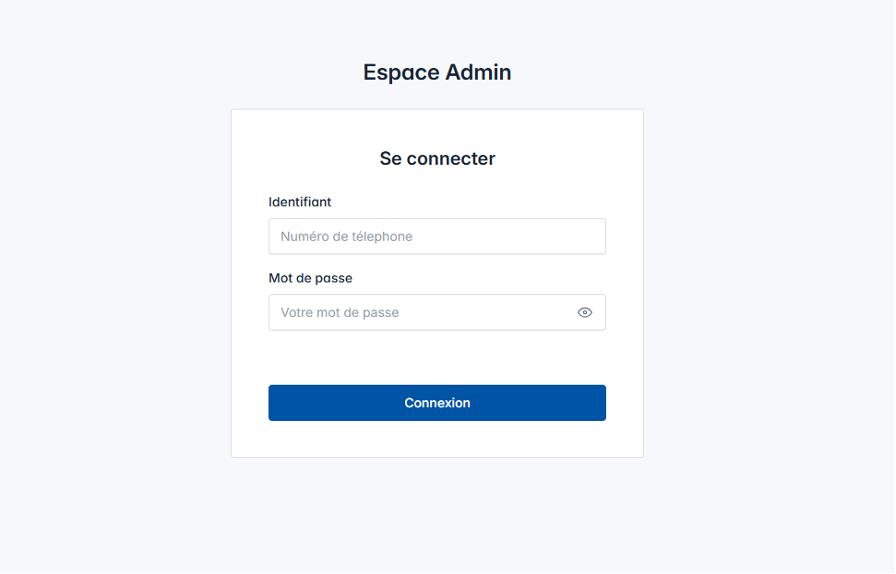 |
Home – Dashboard
The first page displayed after login. It provides a statistical overview of the Minodu community with key indicators updated dynamically in real time.
2.1 Features
- Display of the community name
- Publications counter
- Products counter
- Registered members counter
- Last login timestamp
- Logout button with confirmation modal
- Real-time data updates
2.2 Sections
Section 1 – Header with logout
| Title | Welcome message with the admin name |
| Action | “Logout” button → opens confirmation modal |
Section 2 – Statistics cards
| Card | Description |
|---|---|
| Card 1 | Community name |
| Card 2 | Total number of publications |
| Card 3 | Total number of products |
| Card 4 | Total number of registered members |
Section 3 – Marketplace presentation
Descriptive section of the platform with a general description and information about the Minodu marketplace.
Section 4 – Logout confirmation modal
Confirmation popup before logout. Buttons: Confirm / Cancel.
Section 5 – Recent publications list
Displays recent publications from the community.
2.3 Screenshots
| Description | Screenshot |
|---|---|
| Complete dashboard | 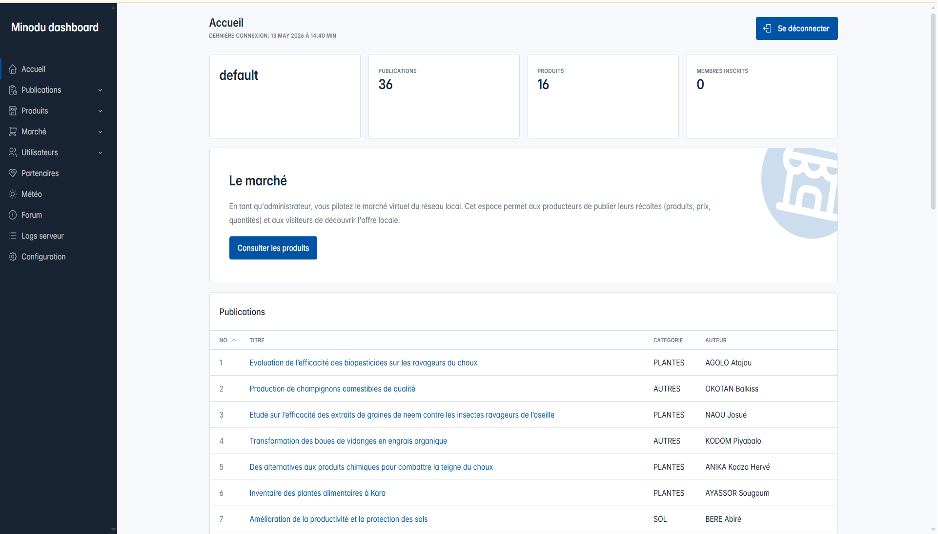 |
| Logout confirmation modal | 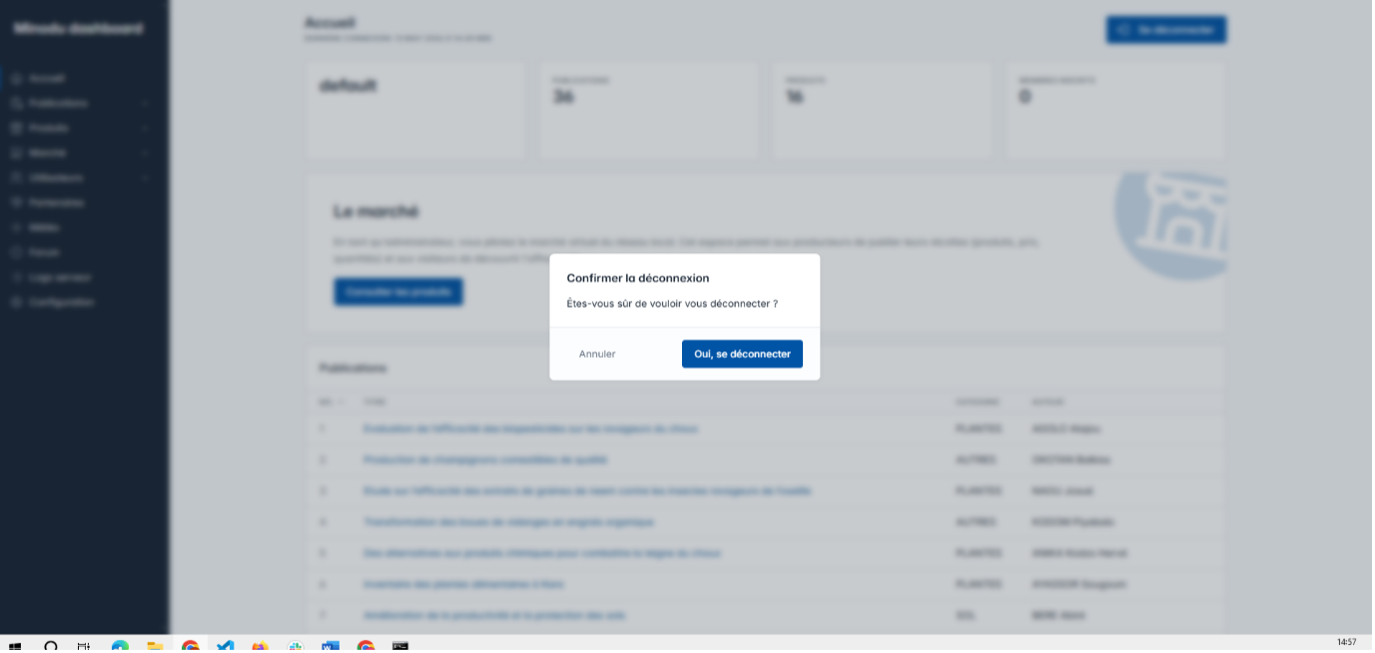 |
Publications
Module for managing the Minodu community’s editorial content. This module is divided into four subsections: publication list, categories, tags, and the detailed view of a publication.
3.1 Publication List
Full CRUD – publications with media and attachments
Displays and manages all community publications. The administrator has access to all CRUD operations as well as advanced search and filtering tools.
Features
- Read: paginated publications table
- Create: add via dedicated modal
- Update: edit all properties
- Delete: with confirmation modal
- Search: filter by title, author, category, and tags
- Uploads: images, French/Kabiyè audio, PDF, resources
Sections
Section 1 – Title bar and actions
| Title | “Publications” |
| Action | “Add” button |
Section 2 – Filters and search
| Search | Text field – filter by title, author, category, and tags |
Section 3 – Publications table
| Column 1 | Publication title |
| Column 2 | Category |
| Column 3 | Author |
| Column 4 | Actions: Edit | Delete |
| Navigation | Pagination between pages |
Section 4 – Add/Edit modal
| Field 1 | Author (required) |
| Field 2 | Title (required) |
| Field 3 | Description (long text) |
| Field 4 | Category (selector) |
| Upload 1 | Main image (PNG/JPEG) |
| Field 5 | Tags (multiple selection) |
| Upload 2 | French audio |
| Upload 3 | Kabiyè audio |
| Upload 4 | PDF file |
| Actions | Save | Cancel |
Section 5 – Delete modal Confirmation before permanent deletion. Buttons: Confirm / Cancel.
Feedback messages
- “Publication added successfully!”
- “Publication updated successfully!”
- “Publication deleted successfully!”
Screenshots
| Description | Screenshot |
|---|---|
| Publications – full table with pagination | 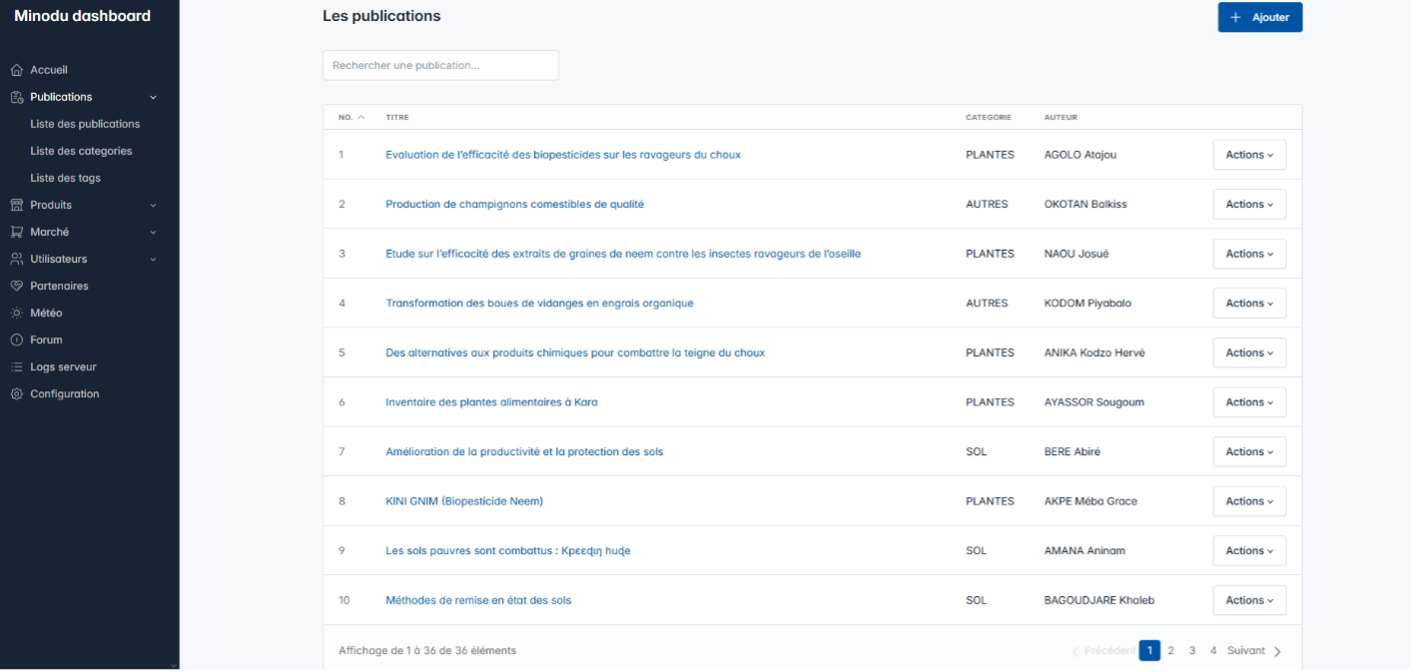 |
| Publications – Add/Edit modal | 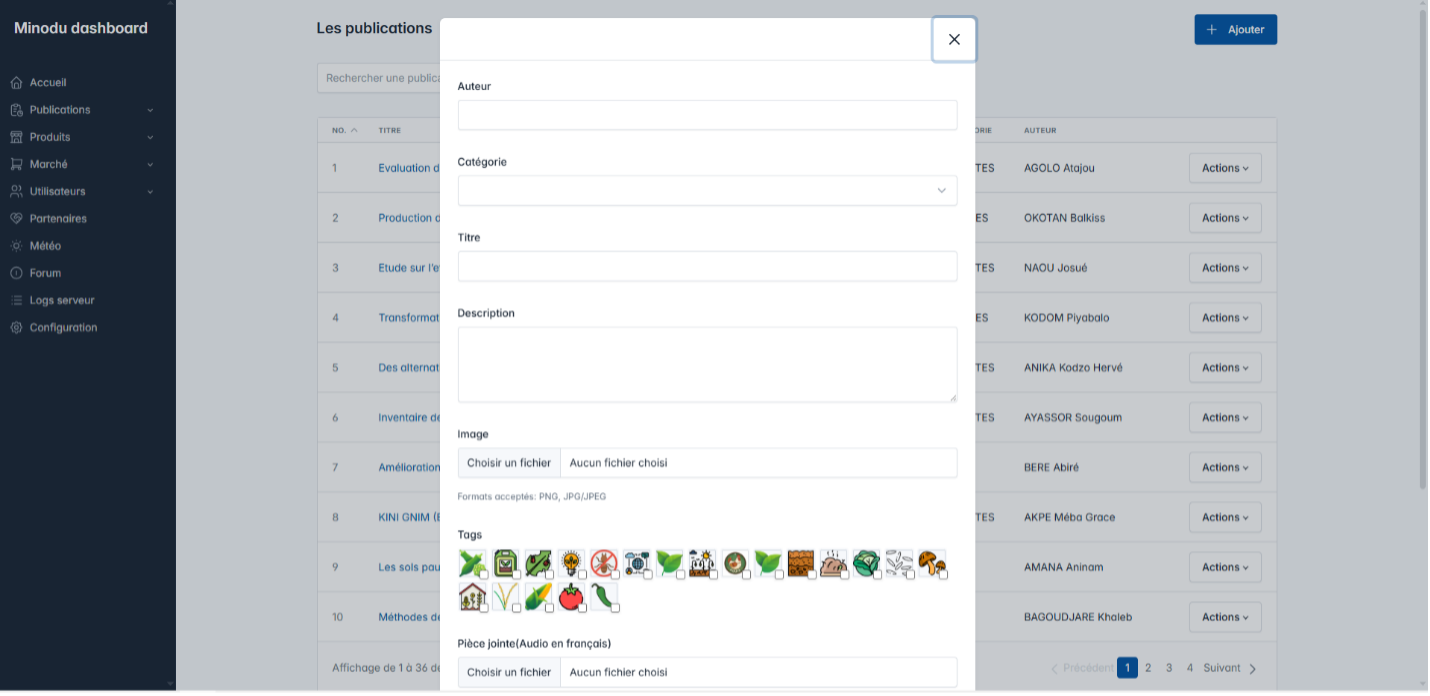 |
| Publications – delete confirmation modal | 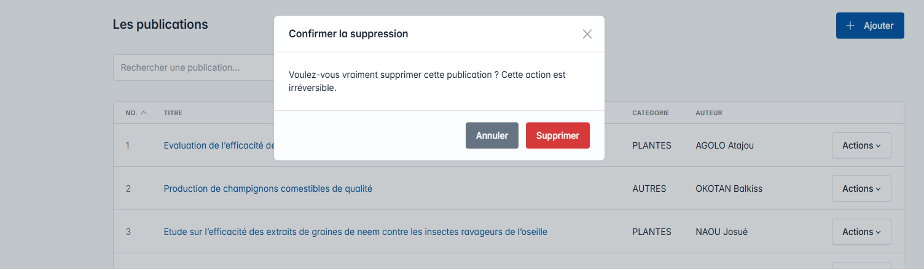 |
3.2 Publication Categories
CRUD – bilingual French/Kabiyè support
Management of categories that organize publications. Each category has a name in two languages (French and Kabiyè) and can be illustrated with an image.
Features
- Read: list of all categories
- Create: new category with image
- Update: edit name (FR/Kabiyè) and image
- Delete: with confirmation
- Bilingual support: French and Kabiyè fields required
Sections
Section 1 – Header
| Title | “Categories” |
| Action | “Add” button |
Section 2 – Categories table
| Column 1 | Name in French |
| Column 2 | Name in Kabiyè |
| Column 3 | Actions: Edit | Delete |
Section 3 – Add/Edit modal
| Field 1 | Name in French (required) |
| Field 2 | Name in Kabiyè (required) |
| Upload | PNG/JPEG image + preview |
| Actions | Save | Cancel |
Feedback messages
- “Category added successfully!”
- “Category updated successfully!”
- “Category deleted successfully!”
Screenshots
| Description | Screenshot |
|---|---|
| Publication Categories – table | 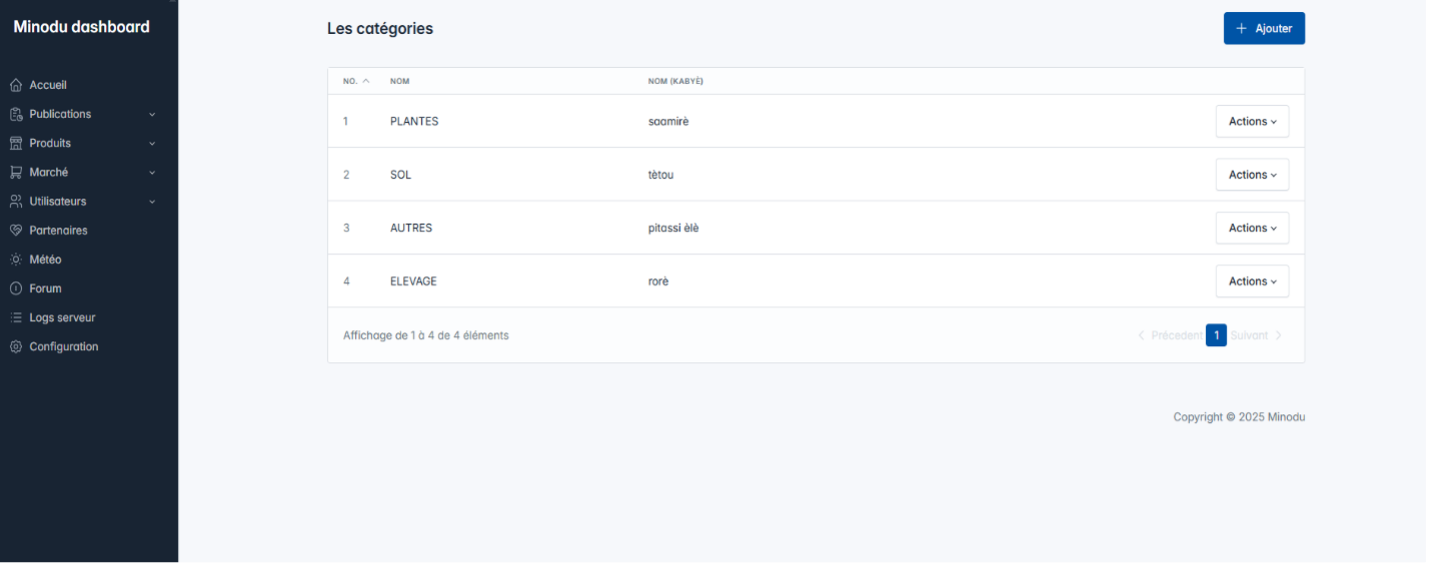 |
| Publication Categories – Add/Edit | 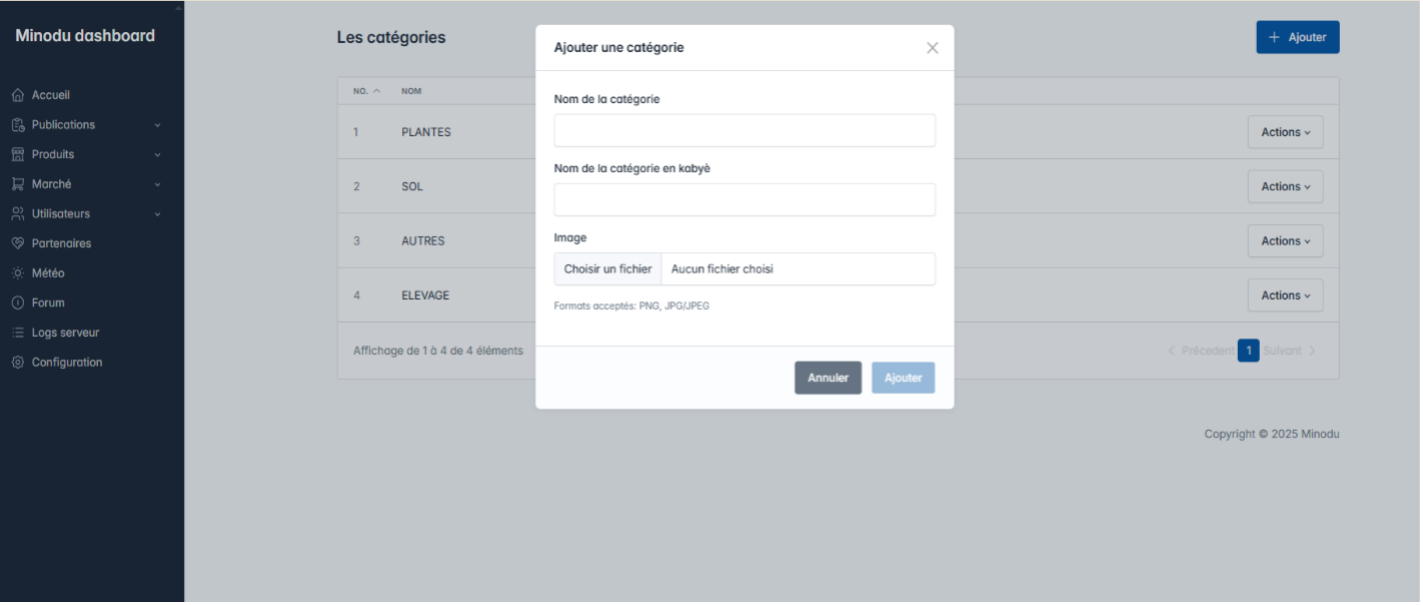 |
3.3 Publication Tags
CRUD – labels with avatars
Tags are labels associated with publications to improve organization and search. Each tag can have an illustrative image/avatar.
Features
- Read: table with avatars
- Create: add with image
- Update: edit name and image
- Delete: with confirmation
- Avatars: each tag can have an illustration
Sections
Section 1 – Header and actions
| Title | “Tags” |
| Action | “Add” button |
Section 2 – Tags table
| Column 1 | Avatar (tag image) |
| Column 2 | Tag name |
| Column 3 | Actions: Edit | Delete |
Section 3 – Add/Edit modal
| Field 1 | Tag name (required) |
| Upload | PNG/JPEG image/avatar + preview |
| Actions | Save | Cancel |
Feedback messages
- “Tag added successfully!”
- “Tag updated successfully!”
- “Tag deleted successfully!”
Screenshots
| Description | Screenshot |
|---|---|
| Publication tags – table | 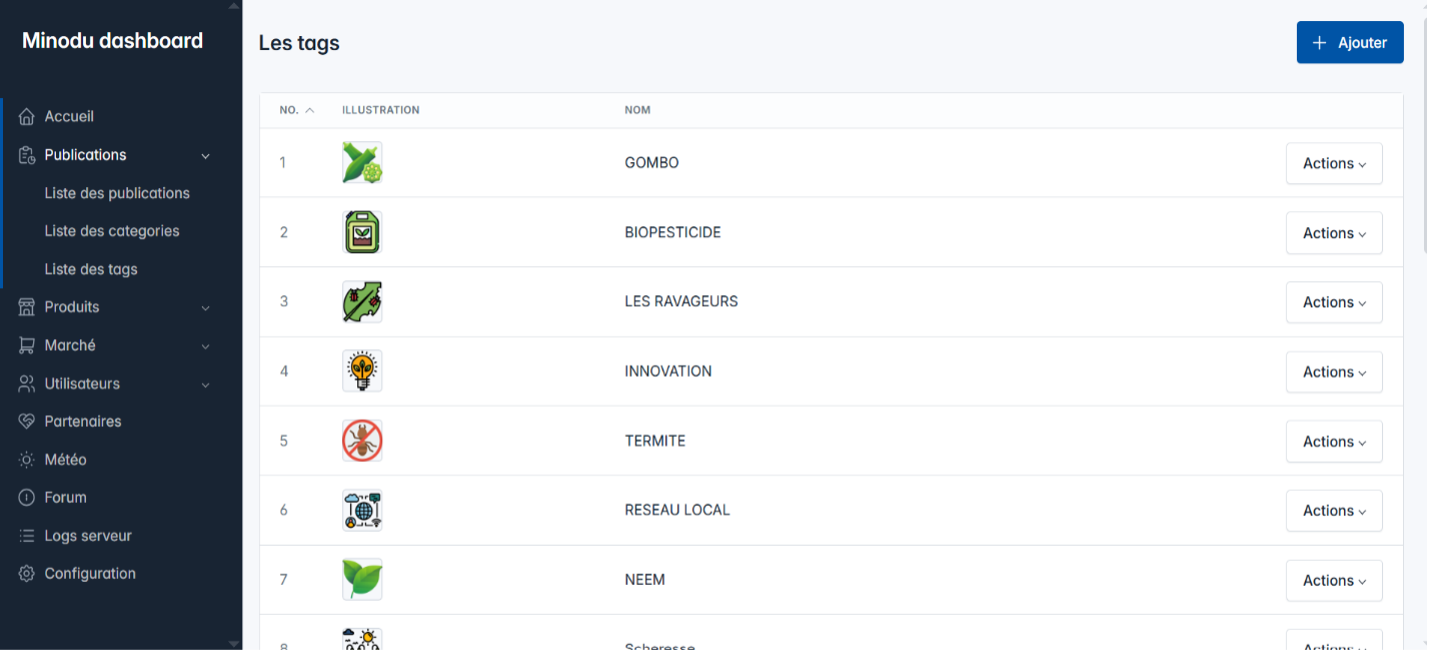 |
| Publication Tags – Add/Edit modal | 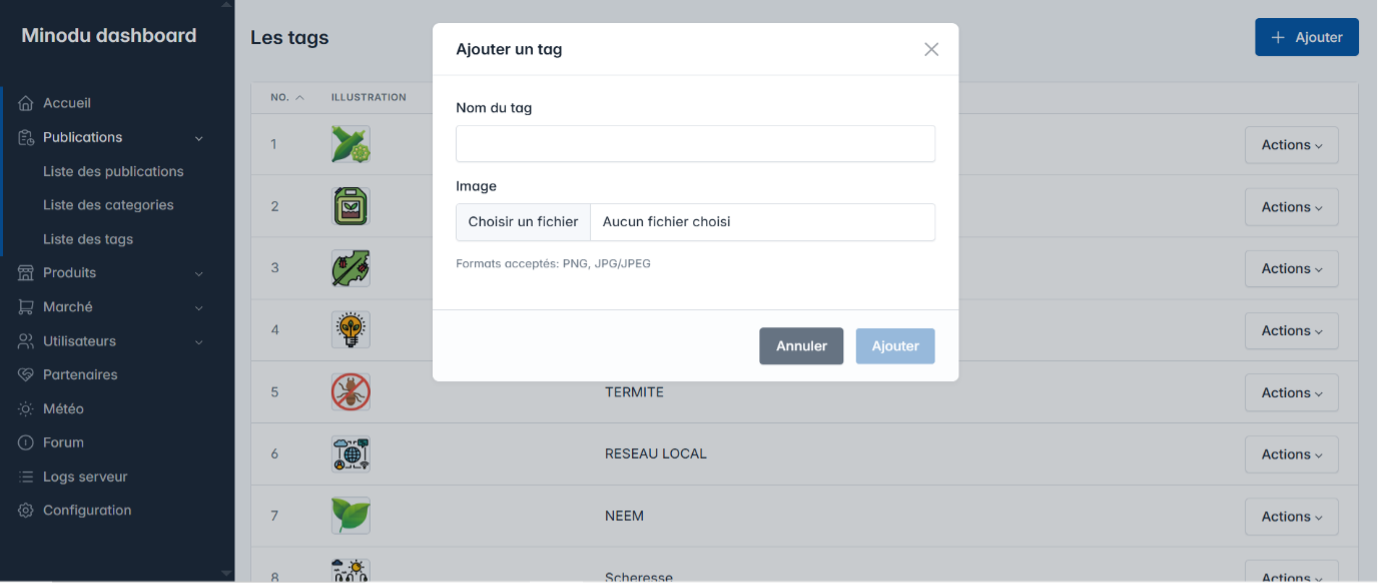 |
3.4 Publication Details
Detailed view – full consultation and editing
Page for in-depth consultation and editing of a single publication, accessible from the list through the “View” button. All properties and media are displayed and editable.
Features
- Consultation: display all details
- Update: edit title, description, category, tags, images, and attachments
- Navigation: breadcrumb (Publications > Details)
- Author: complete author information
- Upload: change images and attachments
Sections
Section 1 – Header with navigation
| Breadcrumb | Publications → Details |
| Info | Author name and information |
Section 2 – General information
| Title | Full publication title |
| Description | Full text |
| Category | Assigned category |
Section 3 – Media and attachments
| Image | Main publication image |
| Tags | List of associated tags |
| Audio | Audio files (FR and Kabiyè) |
| Attached PDF documents |
Section 4 – Action buttons
| Action 1 | Edit publication |
| Action 2 | Return to list |
Screenshots
| Description | Screenshot |
|---|---|
| Publication Details – full view (information + media) | 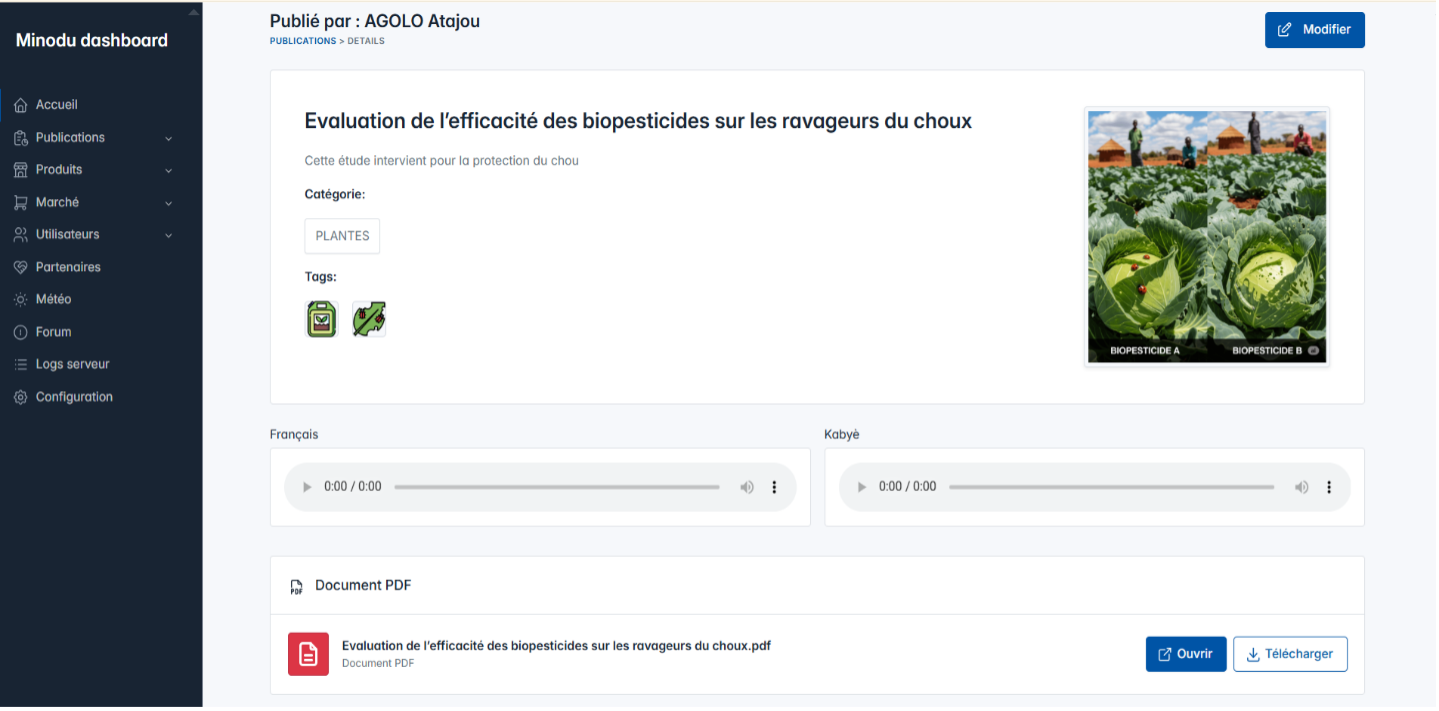 |
Products
Module for managing the Minodu platform’s product catalog. It includes management of products themselves and their categories.
4.1 Product List
Full CRUD – product catalog with images
Displays and manages the complete product catalog. The administrator can add, edit, and delete products, manage their properties (name, description, category, price, sales unit), and manage their images.
Features
- Read: paginated table with all products
- Create: add via modal with image
- Update: edit all properties
- Delete: with confirmation
- Images: upload and manage PNG/JPEG files
Sections
Section1 – Header and actions
| Title | “Products” |
| Action | “Add” button |
Section 2 – Products table
| Column 1 | Product image |
| Column 2 | Product name |
| Column 3 | Category |
| Column 4 | Price |
| Column 5 | Actions: Edit | Delete |
Section 3 – Add/Edit modal
| Field 1 | Product name (required) |
| Field 2 | Description |
| Field 3 | Category (selector) |
| Field 4 | Price (decimal value) |
| Field 5 | Sales unit |
| Upload | PNG/JPEG image |
| Actions | Save | Cancel |
Feedback messages
- “Product added successfully!”
- “Product updated successfully!”
- “Product deleted successfully!”
Screenshots
| Description | Screenshot |
|---|---|
| Products – full table | 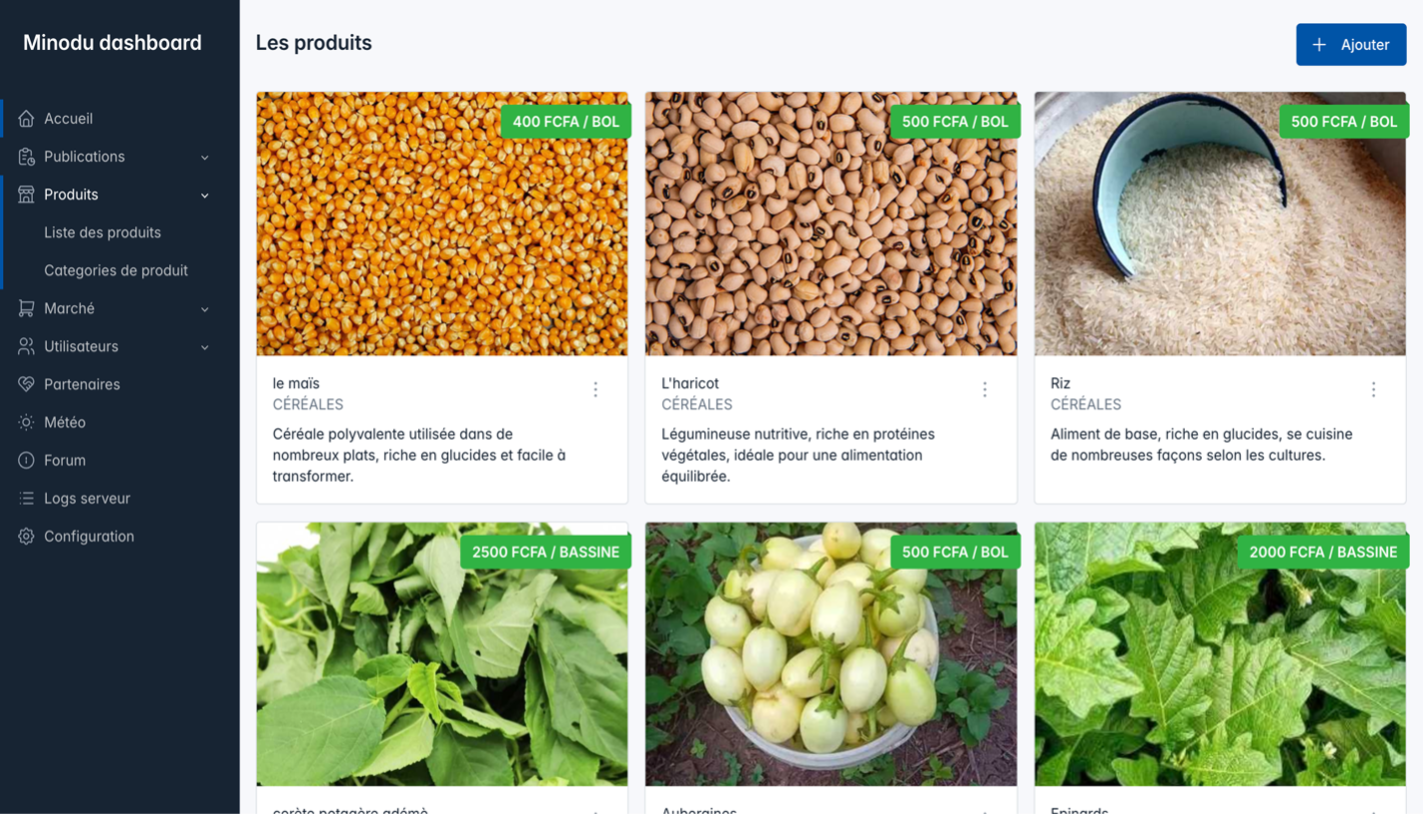 |
| Products – Add/Edit modal | 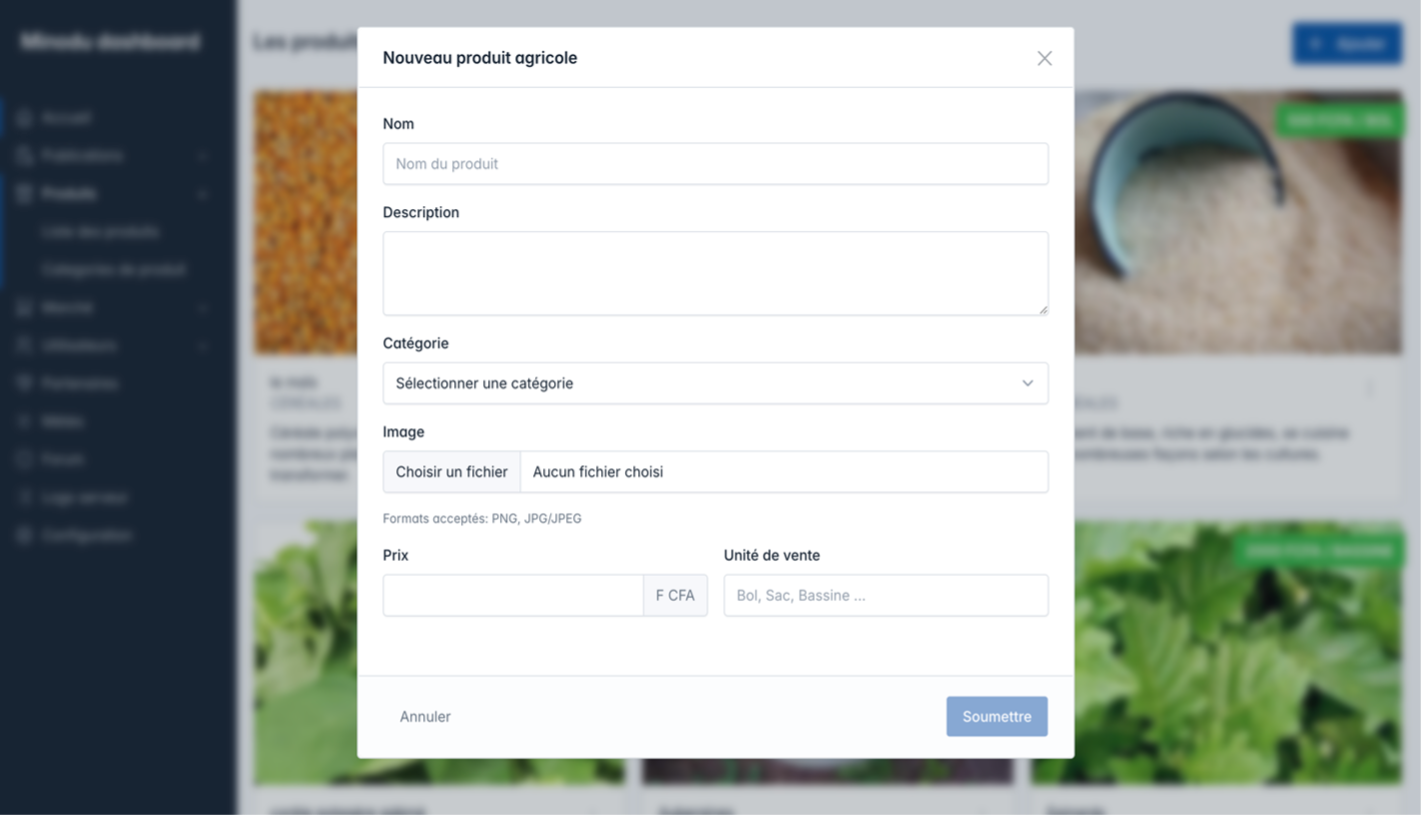 |
4.2 Product Categories
CRUD – categories with illustrative images
Management of categories that organize products (e.g., vegetables, fruits, grains, etc.). Each category can be illustrated with an image.
Features
- Read: list of all categories
- Create: add with image
- Update: edit name and image
- Delete: with confirmation
- Images: PNG/JPEG support
Sections
Section 1 – Header
| Title | “Categories” |
| Action | “Add a category” button |
Section 2 – Categories table
| Column 1 | Illustration image |
| Column 2 | Category name |
| Column 3 | Actions: Edit | Delete |
Section 3 – Add/Edit modal
| Field | Category name (required) |
| Upload | PNG/JPEG image + preview |
| Actions | Save | Cancel |
Feedback messages
- “Product category added!”
- “Product category updated!”
- “Product category deleted!”
Screenshots
| Description | Screenshot |
|---|---|
| Product Categories – table | 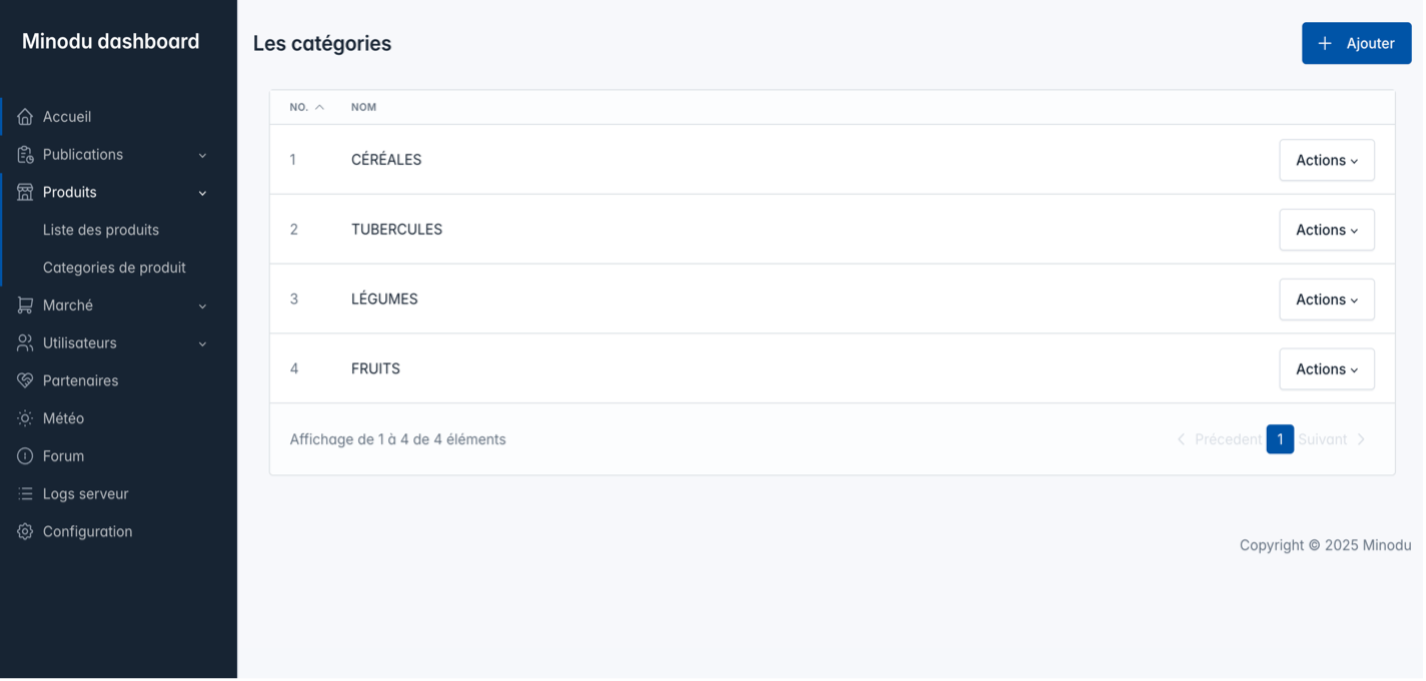 |
| Product Categories – Add/Edit modal | 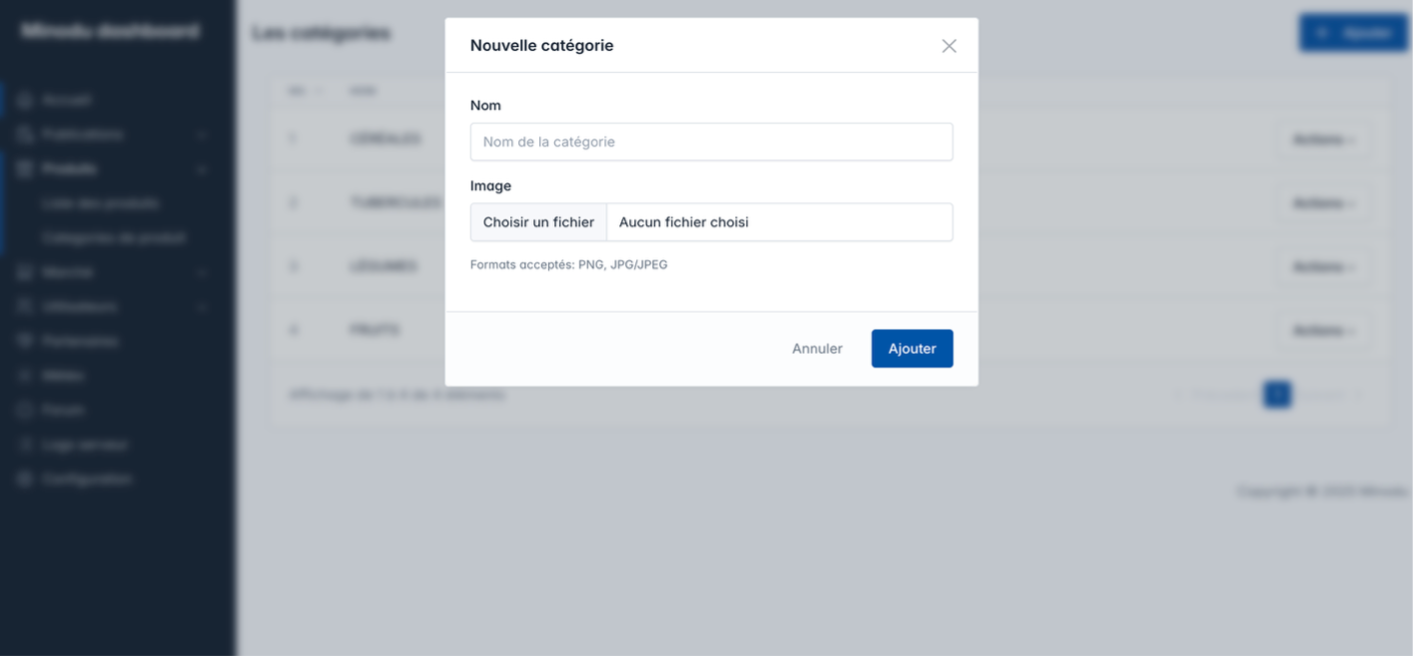 |
Marketplace
Module for managing the Minodu marketplace. It brings together product offers published by producers/companies and product requests submitted by customers.
5.1 Product Offers
Supply marketplace – published availability
Management of product offers: the availability that producers and companies highlight on the platform.
Features
- Read: table of available offers
- Create: add a new offer
- Update: edit offer details
- Delete: remove an offer
Sections
Section 1 – Header
| Title | “Product availability” |
| Action | “Add” button |
Section 2 – Offers table
| Column 1 | Product |
| Column 2 | Available quantity |
| Column 3 | Producer price |
| Navigation | Pagination |
Section 3 – Add/Edit modal
| Field 1 | Product selection |
| Field 2 | Available quantity |
| Field 3 | Producer |
| Actions | Save | Cancel |
Screenshots
| Description | Screenshot |
|---|---|
| Product Offers – full table | 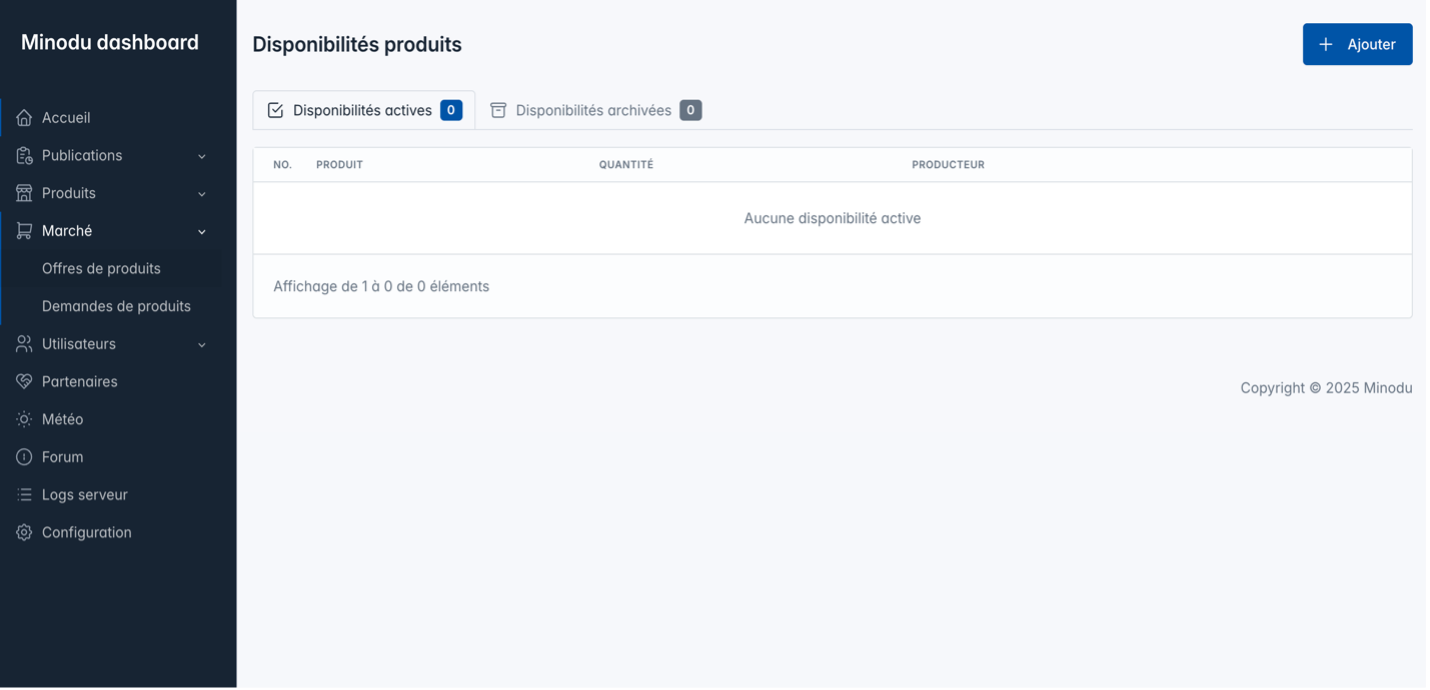 |
| Product Offers – Add/Edit modal | 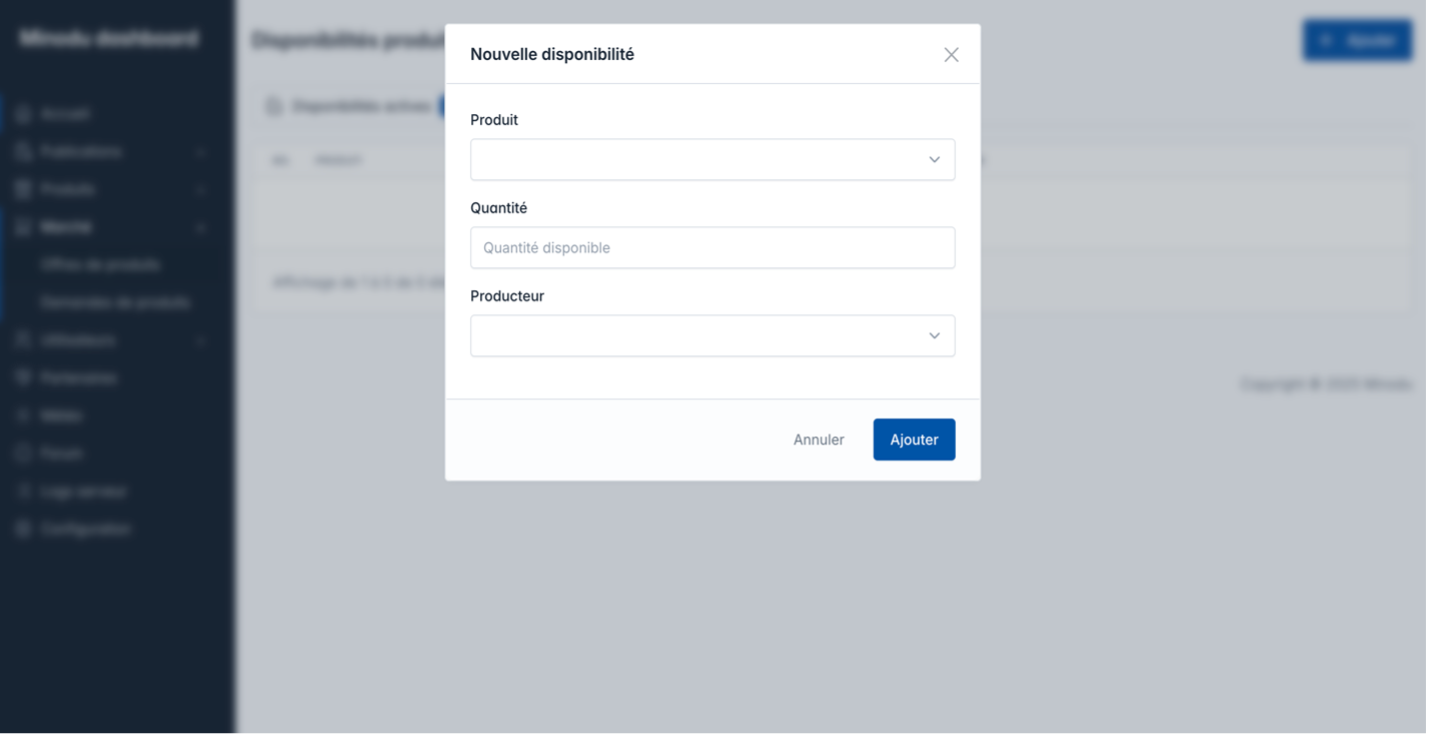 |
5.2 Product Requests
Demand marketplace – customer needs
Management of product requests: needs expressed by customers looking for products on the Minodu platform.
Features
- Read: table of received requests
- Status: track request status
- Details: see who requests what and when
- Tracking: archive or process requests
Sections
Section 1 – Header
| Title | “Product Requests” |
Section 2 – Requests table
| Column 1 | Requested product |
| Column 2 | Requested quantity |
| Column 3 | Partner |
| Column 4 | Deadline date |
| Column 5 | Actions: Edit | Archive | Delete |
| Navigation | Pagination |
Screenshots
| Description | Screenshot |
|---|---|
| Product Requests – full table | 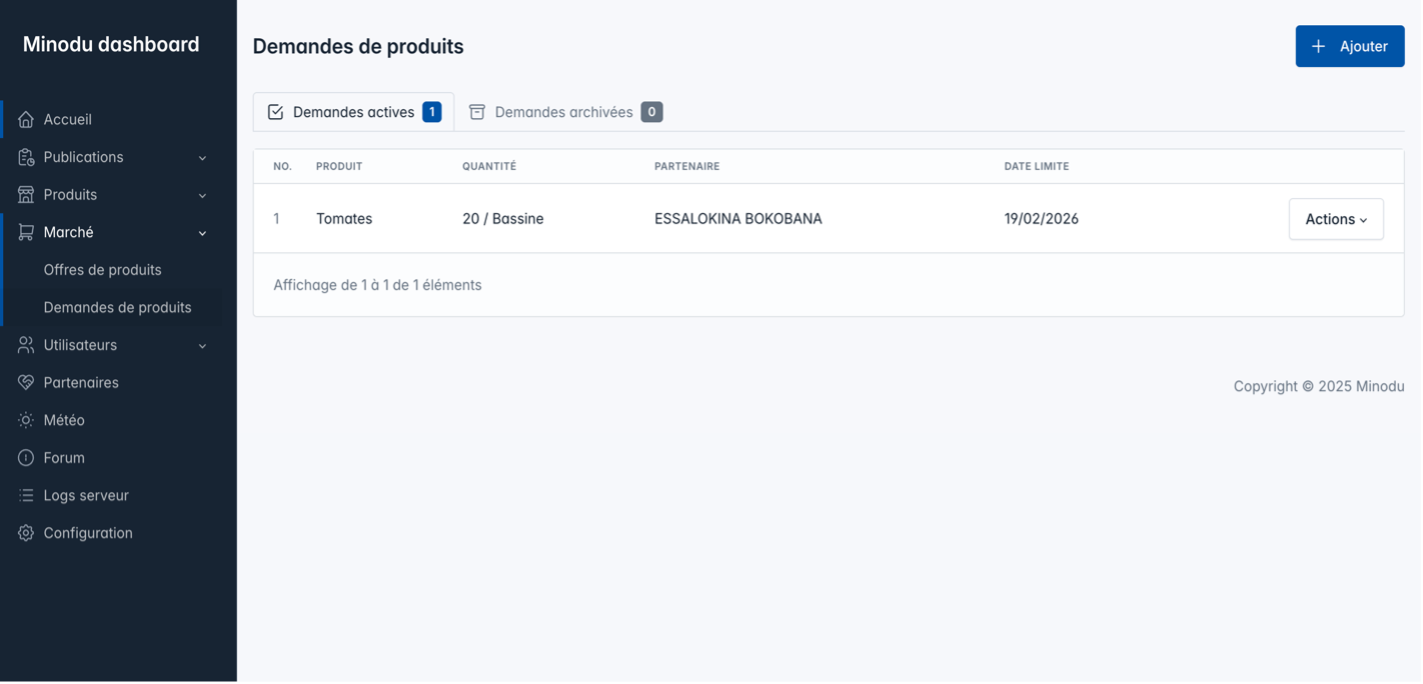 |
| Product Requests – Add/Edit modal | 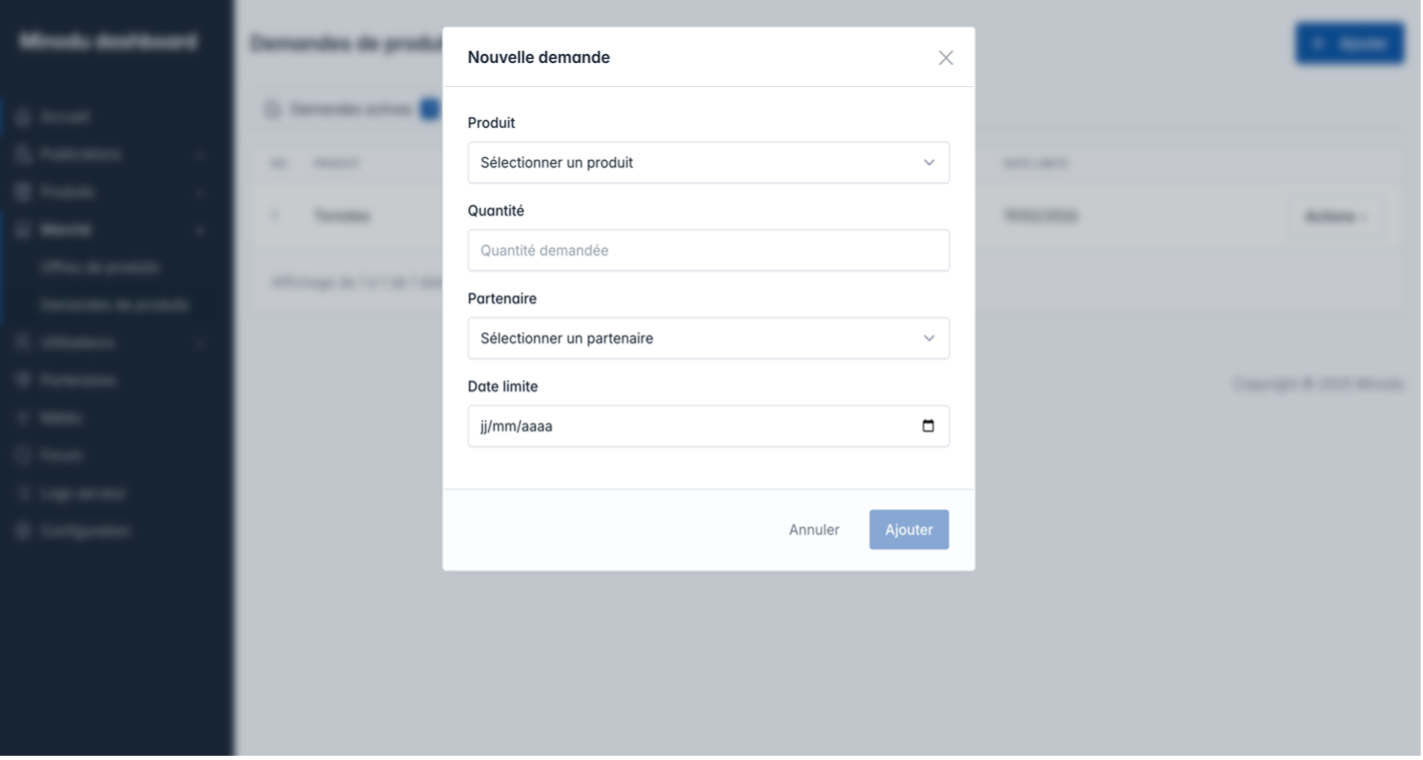 |
Users
Management of all users registered on the Minodu platform. Allows administrators to consult profiles and manage roles, statuses, and permissions.
6.1 Features
- Read: paginated list
- Actions: edit
6.2 Sections
Section 1 – Header
| Title | “Users” |
Section 2 – Users table
| Column 1 | Name |
| Column 2 | Phone |
| Column 3 | Role |
| Column 4 | Contact person |
| Column 5 | Actions: Edit |
| Navigation | Pagination |
6.3 Screenshots
| Description | Screenshot |
|---|---|
| Users – table | 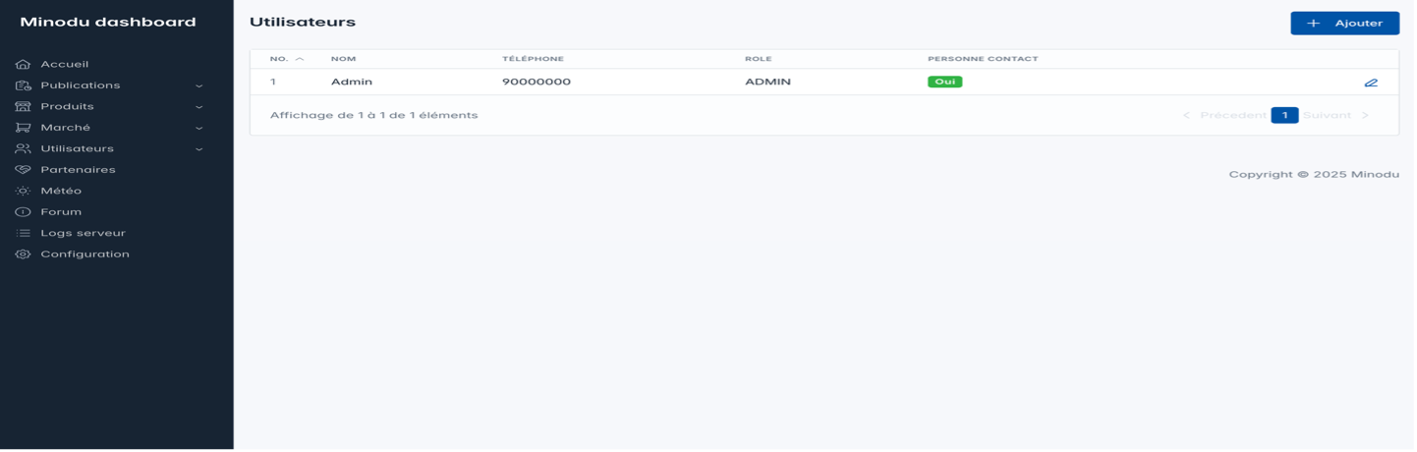 |
| Users – Add/Edit modal | 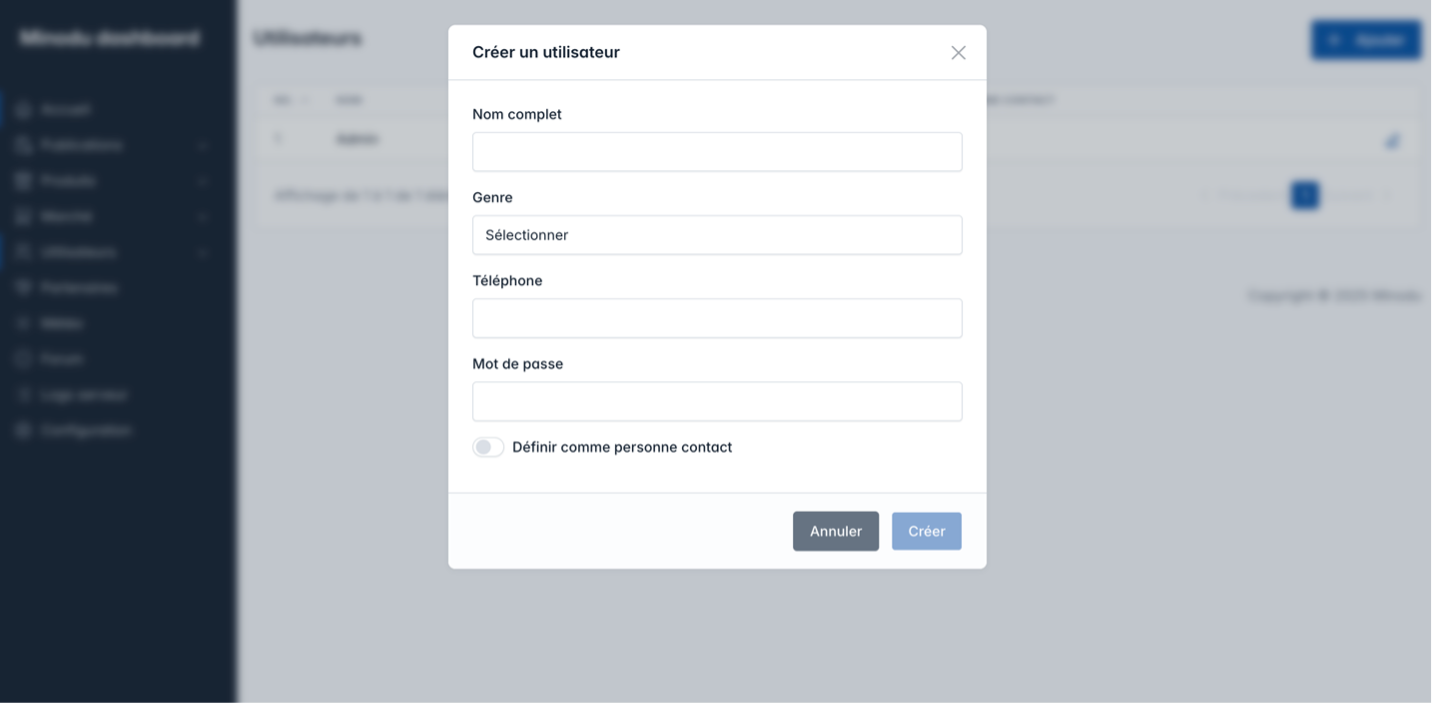 |
Partners
Management of Minodu platform partners: companies, producers, and partner organizations. This section helps maintain business relationships and display partners to users.
7.1 Features
- Read: list of all partners
- Create: add a new partner
- Update: edit information
- Delete: remove a partner
- Contacts: management of complete contact information
- Categorization: partner classification
7.2 Sections
Section 1 – Header and actions
| Title | “Partners” |
| Action | “Add a partner” button |
Section 2 – Partners table
| Column 1 | Name |
| Column 2 | Address |
| Column 3 | Phone |
| Column 5 | Actions: Edit | Delete |
Section 3 – Add/Edit modal
| Field 1 | Name |
| Field 2 | Address |
| Field 3 | Phone |
| Actions | Save | Cancel |
7.3 Screenshots
| Description | Screenshot |
|---|---|
| Partners – full table | 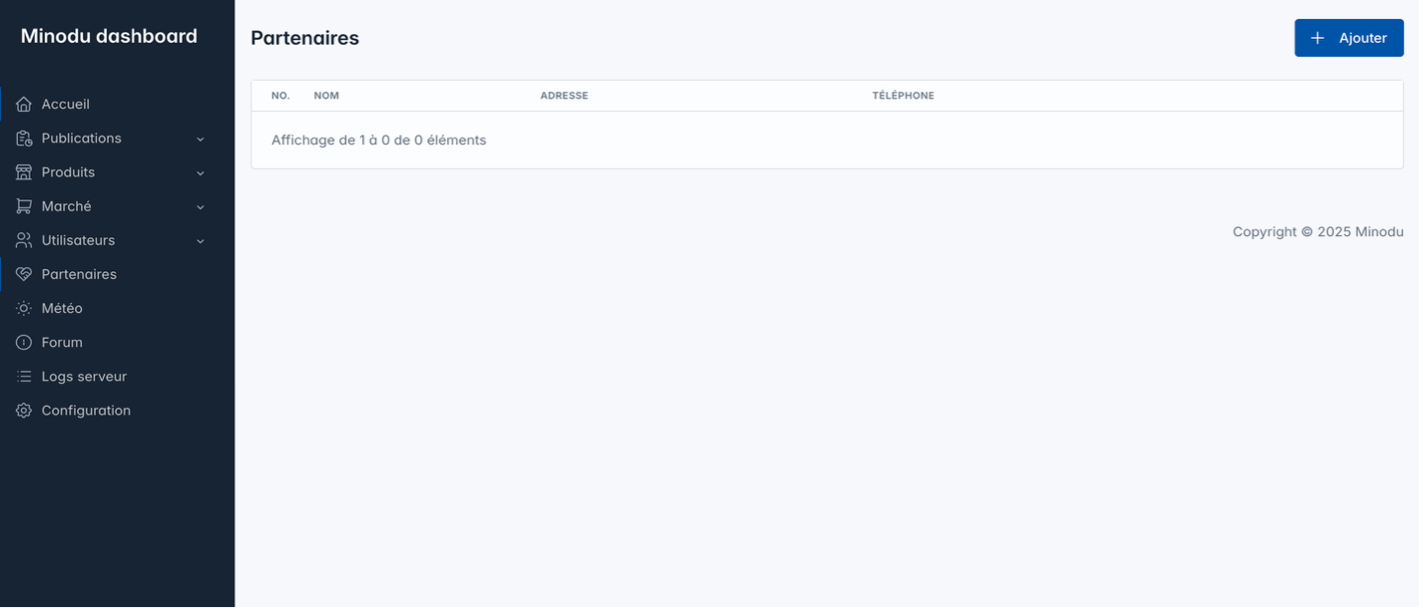 |
| Partners – Add/Edit moral | 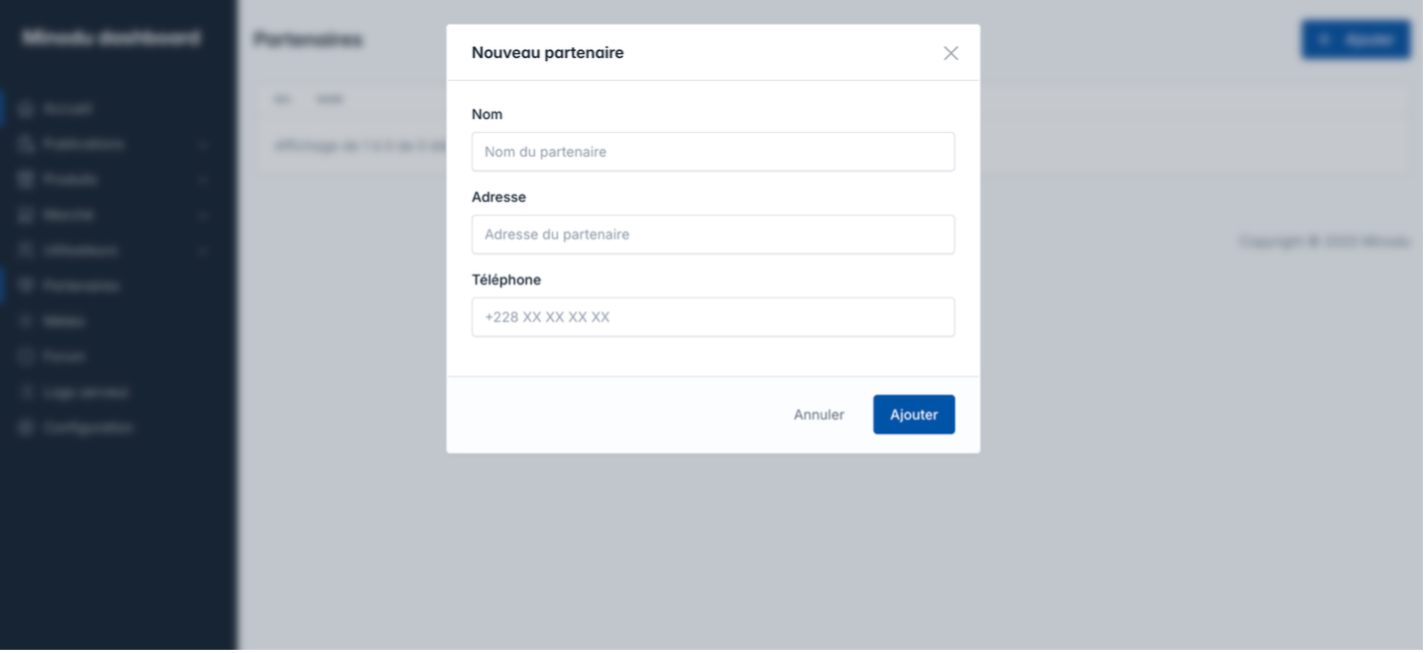 |
Weather
Module for displaying weather data for the region covered by Minodu. Data is retrieved from an external service or a local weather station configured in the settings.
8.1 Features
- Current weather conditions
- Short-term forecasts (following days)
- Data: temperature, humidity, wind speed, UV
- Historical weather data
- Weather station configuration via the Configuration page
8.2 Weather data backup
The Minodu system provides a manual download process for weather data in XLSX format to ensure preservation and traceability of historical climate data.
| Access | “Download” button |
| Format | XLSX file with standardized structure |
| Content | Historical weather data |
8.3 Sections
Section 1 – Header
| Title | “Weather” |
| Location | Displayed region/locality |
Section 2 – Current conditions
| Data 1 | Current temperature (°C) |
| Data 2 | Conditions (Sunny / Cloudy / Rain, etc.) |
| Data 3 | Illustrative weather icon |
Section 3 – Weather details
| Data 1 | Humidity (%) |
| Data 2 | Wind speed (km/h) |
| Data 3 | Atmospheric pressure (hPa) |
| Data 4 | UV index |
Section 4 – Forecasts
| Content 1 | Forecasts for the coming days |
| Content 2 | Temperature charts |
8.4 Screenshots
| Description | Screenshot |
|---|---|
| Weather – full dashboard | 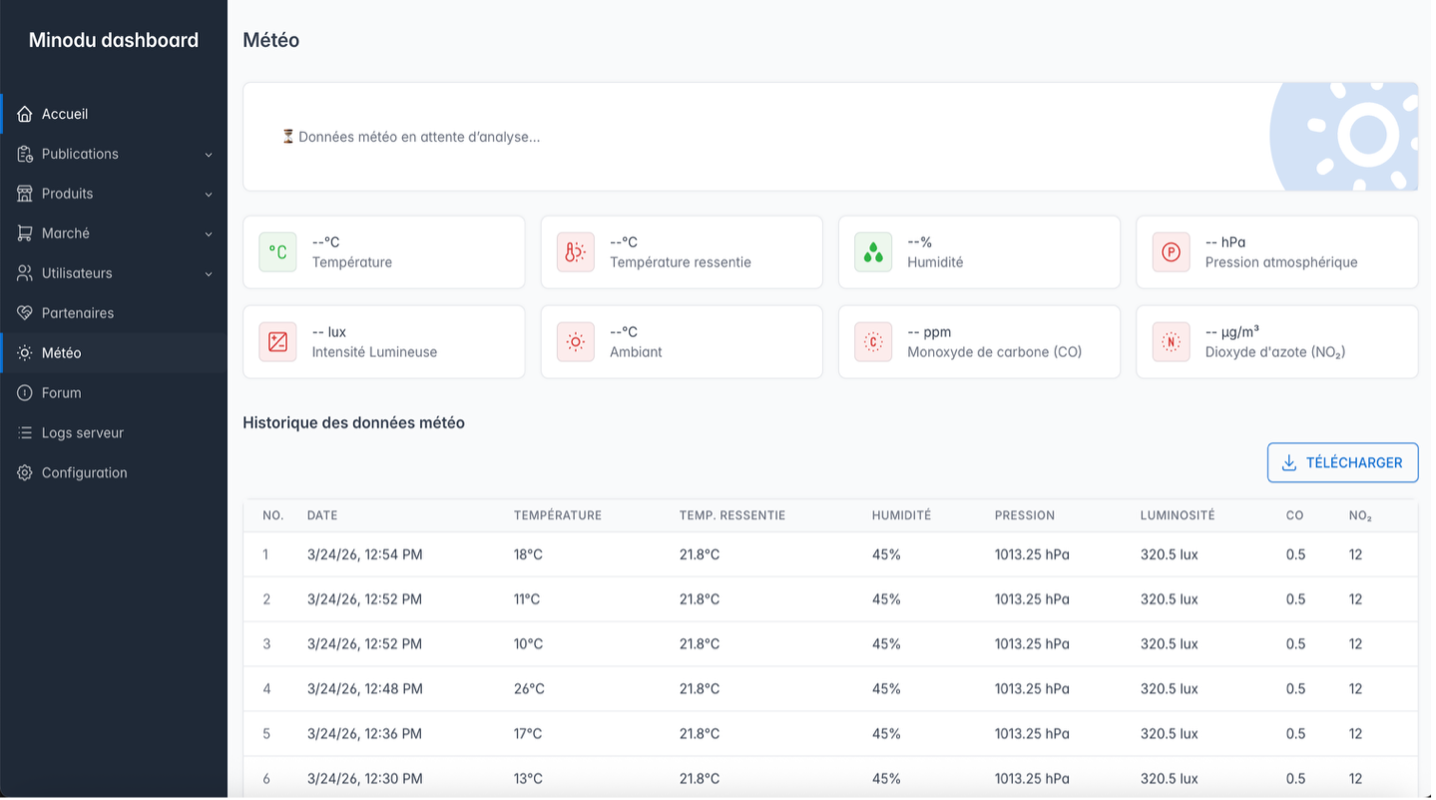 |
Forum
Community discussion space for Minodu members. It enables exchanges between members, information sharing, and creation of discussion topics. The administrator has moderation rights.
9.1 Features
- Read: display active discussions
- Moderation: delete
9.2 Sections
Section 1 – Header
| Title | “Forum” |
Section 2 – Discussion List
| Column 1 | Discussion title |
| Column 2 | Author |
| Column 3 | Actions: Detail | Delete |
9.3 Screenshots
| Forum – discussion list | 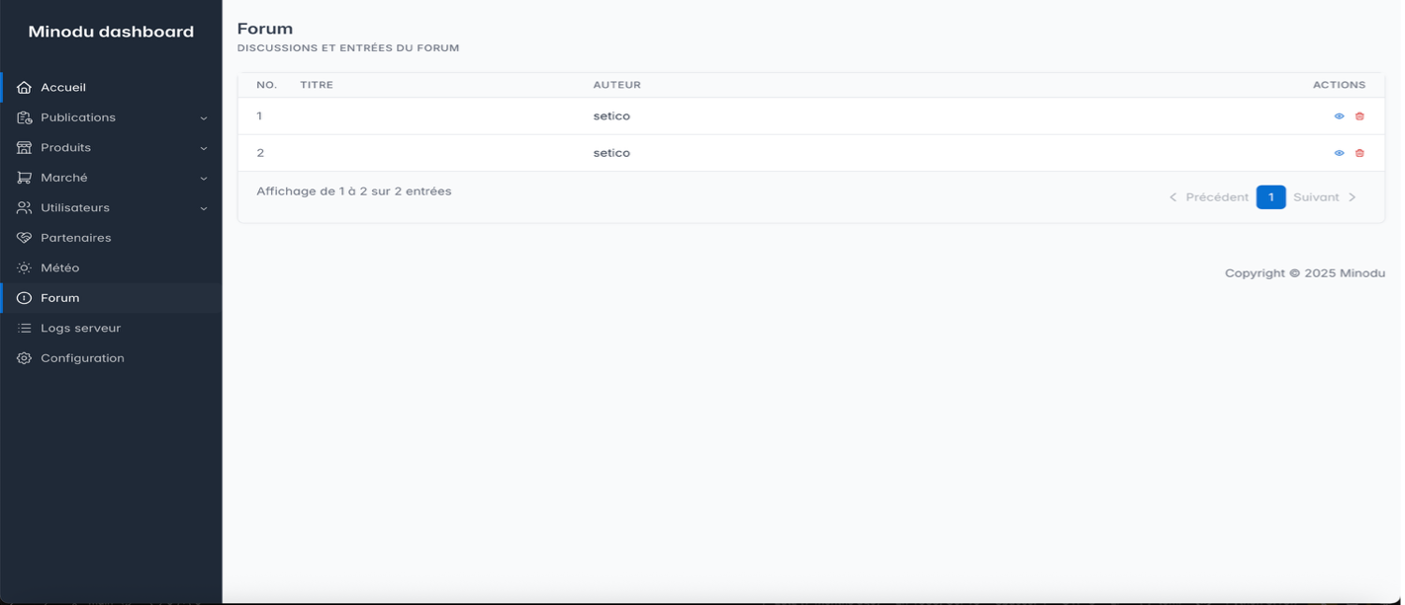 |
| Forum – detailed discussion | 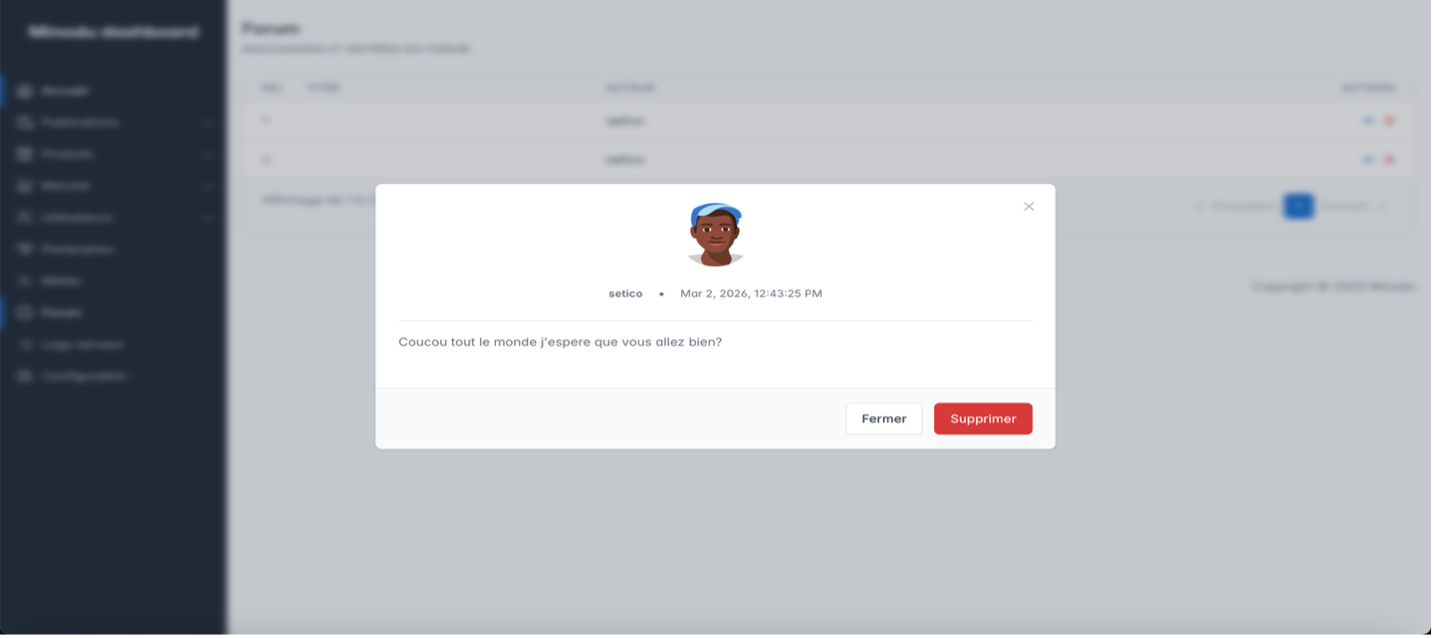 |
| Forum – delete confirmation modal | 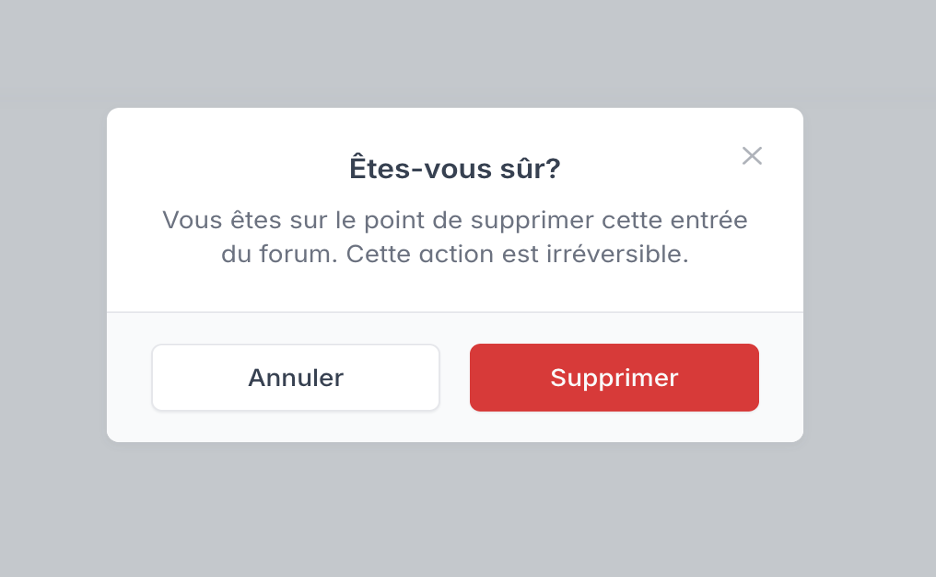 |
Server Logs
Display and management of system event logs. This makes it possible to track all actions, errors, connections, and overall backoffice activity. Navigation is organized around two axes: log source and event type.
10.1 Features
- Filter by source: Backend | Frontend | RAG (dropdown)
- Filter by type: All | Errors only | Access only (tabs)
- Deletion: log cleanup (with confirmation)
10.2 Log navigation
Axis 1 – Source selector (Dropdown)
Dropdown at the top of the page for selecting the source.
| Source | Description |
|---|---|
| Backend | Server logs – transactions, HTTP requests, database, server errors |
| Frontend | Client logs – clicks, loads, JavaScript errors, console errors |
| RAG | AI engine logs – requests, vector transformations, recommendations |
⚠️ The “Frontend” source is selected by default.
Axis 2 – Filtering tabs
Three tabs below the dropdown for filtering by event type.
| Tab | Description |
|---|---|
| All logs | All events: errors + warnings + information + access |
| Errors only | HTTP 400–599, exceptions, critical warnings – red/orange color |
| Access only | Authentications, login attempts, role changes – green/orange |
⚠️ The “All logs” tab is active by default.
10.3 Sections
Section 1 – Header
| Title | “Server logs” |
| Subtitle | “Display and management of server logs” |
Section 2 – Source selector (Dropdown)
Dropdown selection: Frontend (default) | Backend | RAG.
Section 3 – Filtering tabs
Three tabs: All logs (default) | Errors only | Access only.
### Section 4 – Log file management
Optional deletion: “Delete logs” button with mandatory confirmation before execution.
⚠️ Delete logs every 3 months.
10.4 Usage scenarios
| Scenario | Steps |
|---|---|
| Scenario 1 – View all backend logs | 1. Menu → Server logs 2. Dropdown (Source) → Select “Backend” 3. Tab (Filtering) → “All logs” 4. All server events are displayed |
| Scenario 2 – Find a frontend error | 1. Menu → Server logs 2. Dropdown (Source) → Select “Frontend” 3. Tab (Filtering) → “Errors only” 4. Only matching frontend errors are displayed |
| Scenario 3 – Check access and authentication | 1. Menu → Server logs 2. Dropdown (Source) → Select “Backend” 3. Tab (Filtering) → “Access only” 4. Login attempts, successful and failed authentications are displayed |
| Scenario 4 – Delete logs | 1. View logs using any source/filter 2. Click “Clear logs” 3. Confirm in the confirmation modal 4. Logs are cleared from the server (disk space freed) |
10.5 Common use-case guide
| Use case | Recommended view |
|---|---|
| Daily monitoring | Backend → All logs (hourly) |
| User debugging | Frontend → Errors only (when bugs are reported) |
| Security audit | Backend → Access only (check suspicious authentications) |
| Monthly maintenance | Delete to free space |
10.6 Screenshots
| Description | Screenshot |
|---|---|
| Logs – Source dropdown open (Frontend / Backend / RAG) | 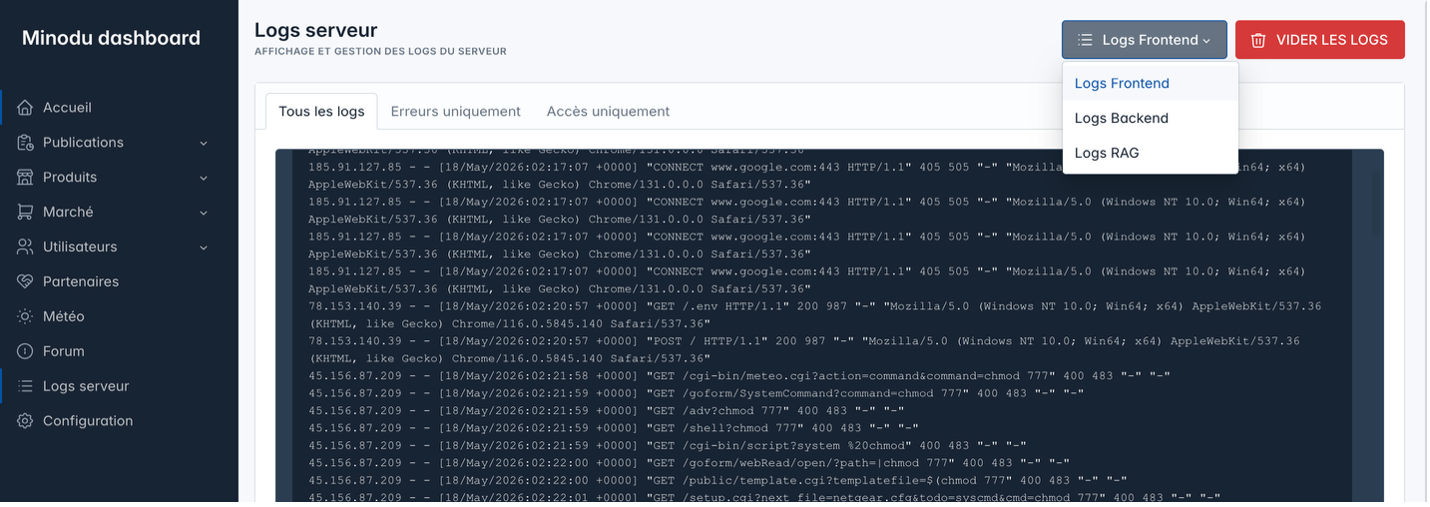 |
| Backend logs – all logs | 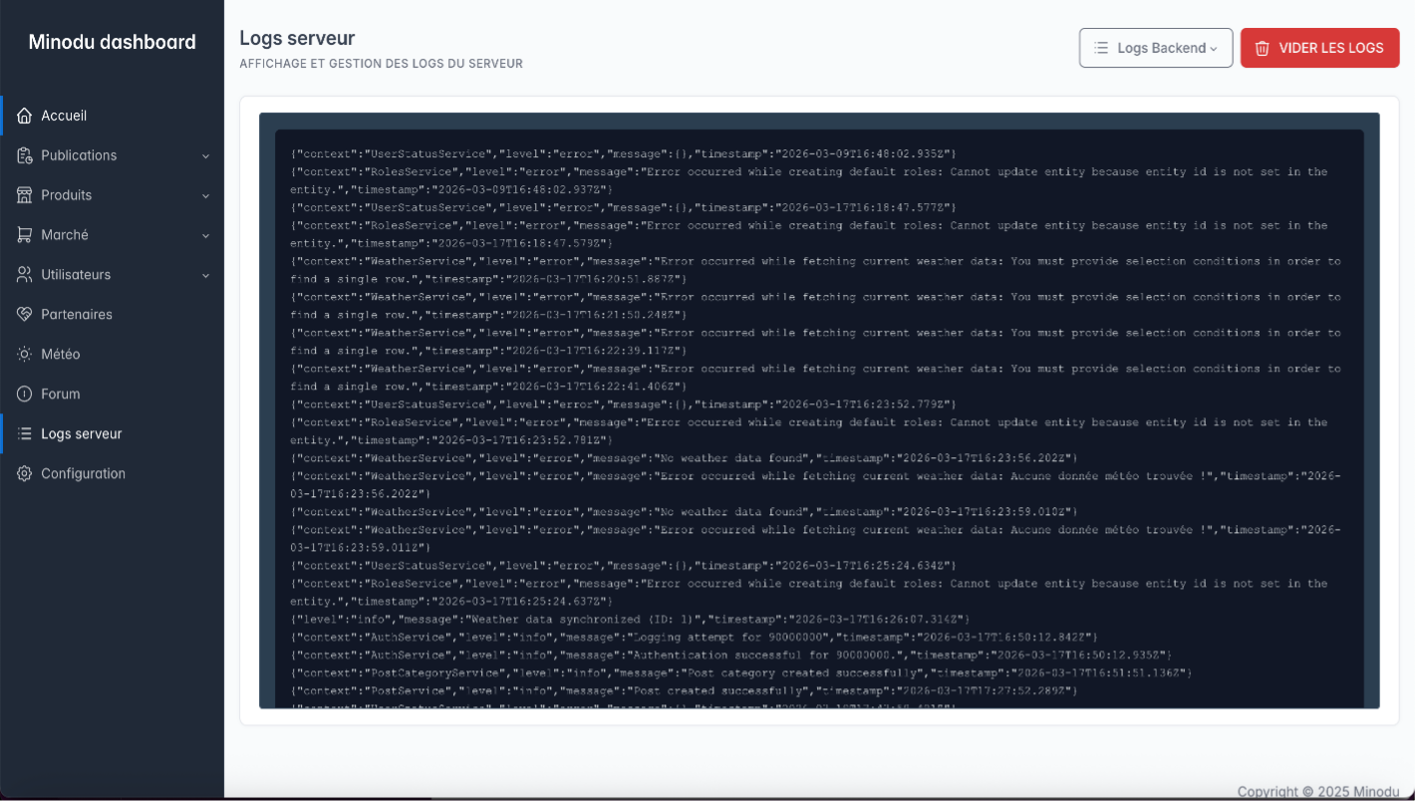 |
| Frontend logs – all logs | 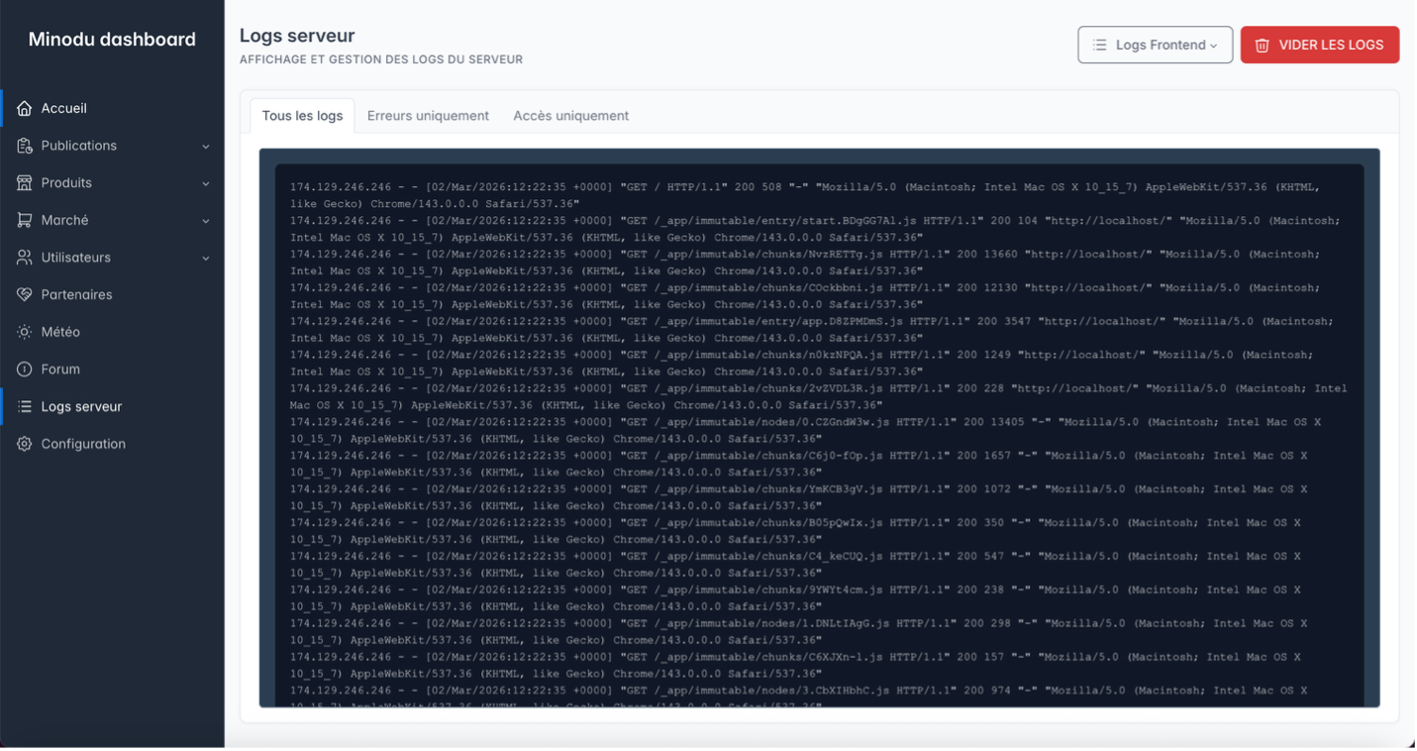 |
| RAG logs – all logs | 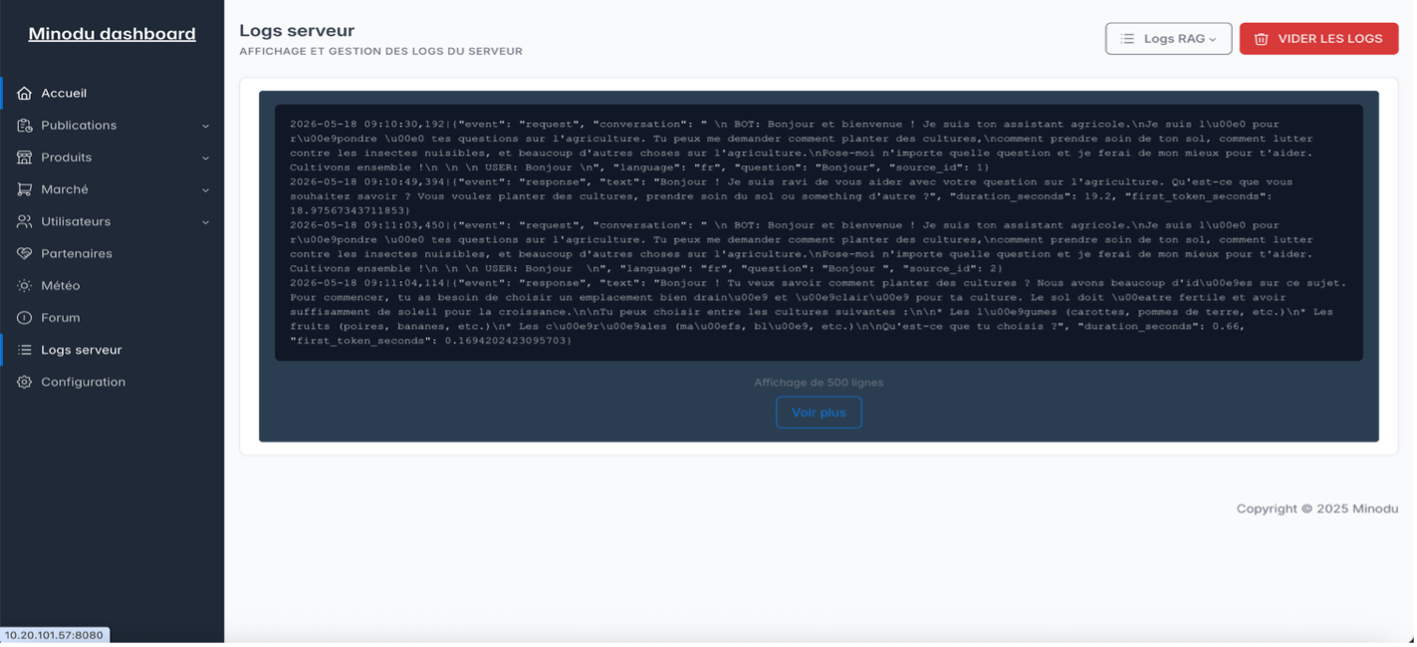 |
| Logs – delete confirmation modal | 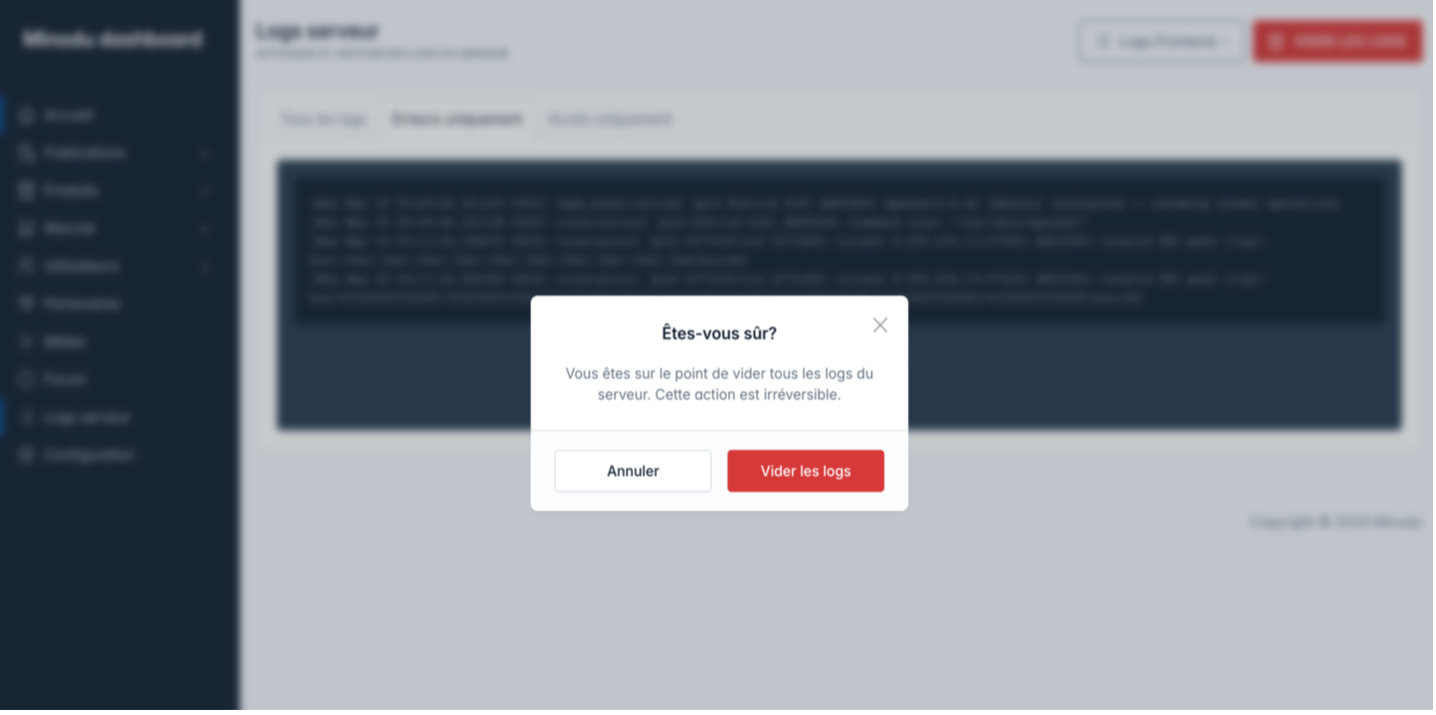 |
Configuration
System administration page for configuring global Minodu settings. It allows customization of the community name, contact links, weather station, and administrator account security.
11.1 Features
- Community information: name, location, address
- Contact links: WhatsApp, weather station
- Description: community presentation and introduction
- Security: change administrator password
11.2 Sections
Section 1 – Header
| Title | “Configuration” |
Section 2 – General information
| Field 1 | Community name |
| Field 2 | Location |
| Field 3 | Full address |
| Field 4 | WhatsApp link |
| Field 5 | Weather station link |
| Field 6 | Community presentation |
Section 3 – Security
| Action 1 | “Change password” button → opens modal |
| Action 2 | Save changes |
Section 4 – Change password modal
| Field 1 | New password |
| Field 2 | Confirm new password |
| Actions | Validate | Cancel |
11.3 Feedback messages
- “Your community information has been updated successfully!”
- “Password changed successfully!”
11.4 Screenshots
| Description | Screenshot |
|---|---|
| Configuration – general form (information + links) | 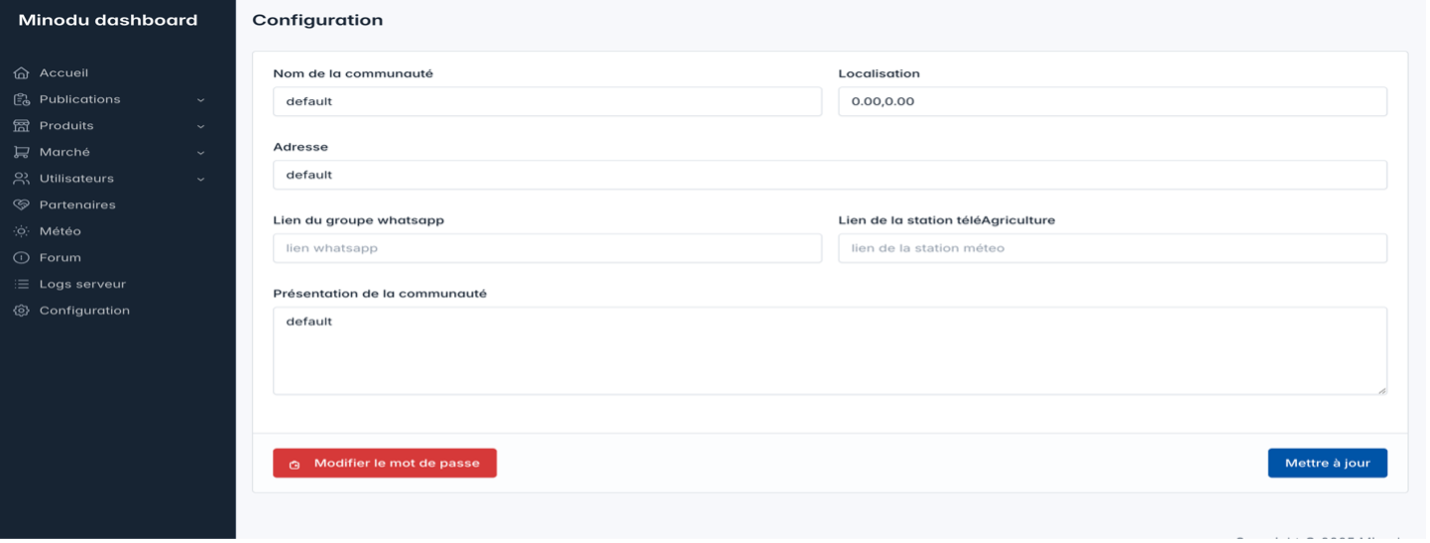 |
| Configuration – password change | 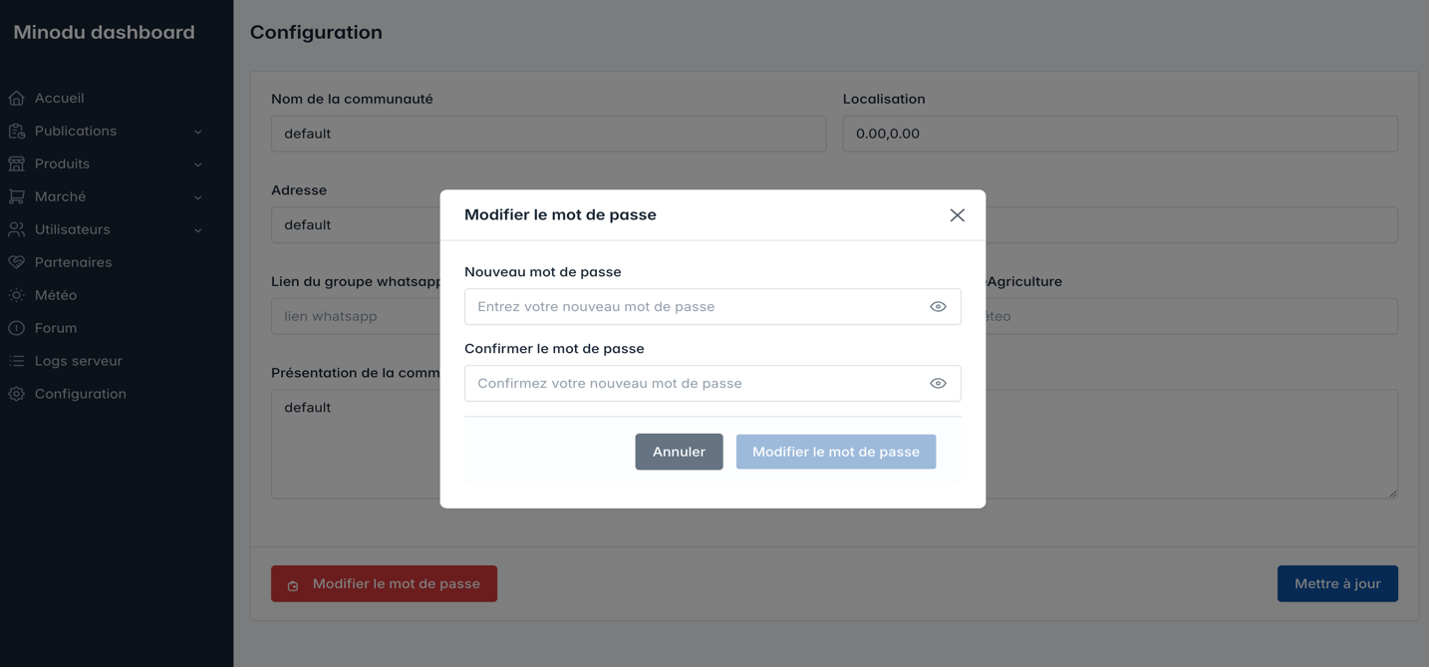 |
Important user flows
Here are some common procedures
How do you add a new audio file/podcast?
To add a new audio file or podcast, open the Add form and complete the required information.
- Enter the Author and Title (required fields).
- Optionally, add a Description.
- Select the appropriate Category.
- Upload a Main image (PNG or JPEG).
- Select one or more Tags.
- Upload the audio files:
- French audio
- Kabiyè audio
- If applicable, upload a PDF file.(a document that content further informations about the work resumed in the audio files)
- Click Save to publish the audio, or Cancel to discard your changes.
How do you remove the wrong content?
- Identify the incorrect content ( Title, Author name , audio, pdf file, etc.).
- Log in to the back office
- Go to the list of content (publications, categories, products, tags, ect.).
- Search for the content by title, date, or author.
- Open the details page for the relevant content.
To do a simple correction:
- Edit the text or metadata.
- Save the changes. To remove content that is no longer needed:
- click the Delete action. A confirmation dialog will appear to prevent accidental deletion.
- Click Confirm to permanently delete the content, or Cancel to keep it.
How do I moderate forum posts?
The administrator can review active discussions and remove inappropriate topics or replies if necessary. Select the Delete action for the content to be removed, then confirm the deletion. Deleted content is permanently removed from the forum.
How do I export weather data?
To collect historical weather data:
- Log in to the backoffice using an administrator account.
- Navigate to the Weather Data section.
- Click the Download button.
- The system generates an XLSX file containing the available historical weather data.
- Save the downloaded file to your computer for reporting or further analysis.
How do I back up the system?
We recommend to do the backup, before any software update, maintenance operation, or configuration change.
What should I never delete?
Do not delete the following items without prior validation:
- System folders required for the back office to operate (e.g.,
/system,/core,/config). - Application and database configuration files (e.g.,
config.php,.env,settings.json). - Files or folders required for the proper operation of the application, even if they appear unused.
- Backup files that are still important or covered by the backup retention policy.
- Administrator or technical accounts without first confirming their purpose and dependencies.
The default content delivered with the application must not be deleted: Any default data provided with the application, including but not limited to:
- Default categories
- Default tags
- Initial publications
- Default products
- Preconfigured user accounts
- Default partners
- Forum categories or topics
- Any other data installed by default during deployment
- Any file, folder, database record, or configuration item whose purpose is not clearly understood. Golden Rule: If you are unsure whether an item is safe to remove, do not delete it.
What do I do when the system is offline?
Here are some steps to follow if the system goes offline Basic Checks: - Check the power supply to the raspbery pi/the server.
- Check the switch. Restart: - If the system appears to have frozen, perform a hard reset (using the power switch).
- Wait a few minutes and check if the services are accessible again. If the outage persists, contact the maintenance team and inform the community through the designated channels (WhatsApp group). Provide the following information to the maintenance team:
- Time of the outage
- Observed symptoms (inaccessible pages, error messages, etc.)
- Actions already taken (restart, checking the switch, etc.)
Module Summary
| # | Module | Key features | Access |
|---|---|---|---|
| 1 | Authentication | Login, sessions, security | Entry page |
| 2 | Dashboard | Statistics, logout | After login |
| 3.1 | Publications | CRUD + media uploads | Publications menu |
| 3.2 | Publication categories | Bilingual FR/Kabiyè CRUD | Publications menu |
| 3.3 | Publication tags | CRUD with avatars | Publications menu |
| 3.4 | Publication details | Consultation + editing | Via publication list |
| 4.1 | Products | CRUD + price + unit | Products menu |
| 4.2 | Product categories | CRUD with images | Products menu |
| 5.1 | Marketplace offers | CRUD + availability status | Marketplace menu |
| 5.2 | Marketplace requests | Consultation + status tracking | Marketplace menu |
| 6 | Users | Consultation + blocking | Users menu |
| 7 | Partners | CRUD + contacts | Partners menu |
| 8 | Weather | Real-time display | Weather menu |
| 9 | Forum | Discussions + moderation | Forum menu |
| 10 | Server logs | Backend / Frontend / RAG | Logs menu |
| 11 | Configuration | Settings + password | Config menu |
© 2026 Minodu – Confidential
Minodu Backoffice – Administrator Documentation